Clinical Note Templates
Note Templates allow to create and save standard text for notes that are used regularly. Instead of typing the same information each time, users can select a template and add it to a patient note. The text can then be edited if needed.
Two types of preset note templates are available in the system.
| Type | Description | Location |
|---|---|---|
| Practice Templates | They are shared templates accessible to all users within the practice | Admin → Practice Setup → Practice Clinical Notes |
| User Templates | Individual users create them and use | Admin → User Setup → My Clinical Note Templates |
Logged-in users can access their User Templates by going to System Config (their initials in the top-right corner), then selecting My Details → My Clinical Note Templates.
Clinical Note Categories
All templates can be organised into categories, making it easier for users to find templates related to a specific topic.

Adding a new Category:
Go to Admin → Practice Setup → Practice Clinical Notes for Practice templates or Admin → User Setup → Practice staff members -> Manage -> My Clinical Note Templates for User templates
- Click ‘New Category’
- Enter a name
- Click ‘Save’
Editing a Category:
- Select a category
- Click ‘Edit Category’
- Change the name
- Save changes
Deleting a Category:
- Select a category
- Click ‘Edit Category’
- Press ‘Delete’
Before deleting a category, make sure all note templates associated with it are removed.
Clinical Note Templates
Adding a new template:
Go to Admin → Practice Setup → Practice Clinical Notes for Practice templates or Admin → User Setup → Practice staff members -> Manage -> My Clinical Note Templates for User templates
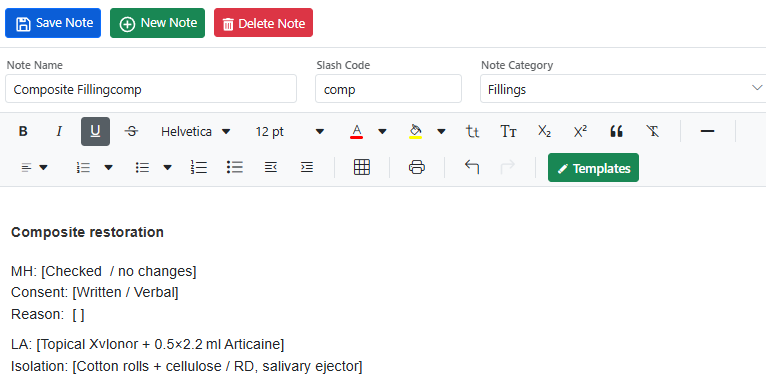
- Click ‘+New Note’
- Enter the note name and select the category.
- Add a Slash Code . Afterwards the system will allow users to insert predefined note templates using the Slash Notes functionality. --->>> Read more
- Create a note template by typing freehand, pasting text, or using an existing preset template.
- Save a template
Editing a template:
- Click the arrow next to the category to expand the list.
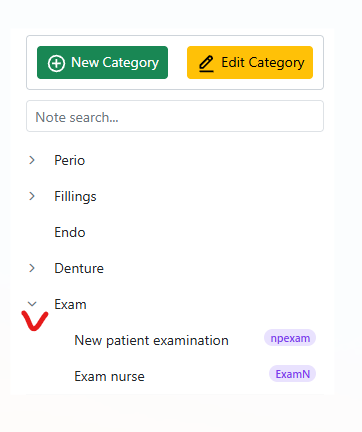
- Select a template you want to edit.
- Make your changes
- Click Save.
Deleting a template:
- Click the arrow next to the category to expand the list.
- Select a template you want to delete.
- Click ‘Delete Note’.
Deleting a template will not affect previously saved notes.