Online Booking
Online Booking configuration
Admin users can configure which appointment reasons are available for online booking, assign the relevant practitioners, and define whether a deposit payment is required.
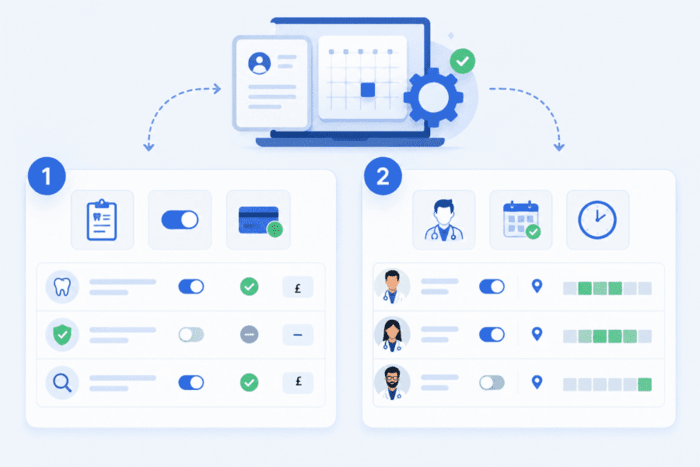
Setting up online booking involves two main steps:
- Configuring appointment reasons . Define which appointment types are visible online and set any required payment options.
- Managing practitioner availability. Configure which practitioners are available for online bookings and manage their availability.
How to configure an online booking reason
- Go to
Admin->Practice Setup ->Appointment Book - Navigate to the Appointment Reasons tab.
- Add a new online appointment reason or double-click an existing one to edit it.
- In the Online Booking Settings tab:
- Enable Allow online booking.
- Update the online booking label if required.
- Enter a deposit amount, if applicable.
- Add the required terms and conditions.
- Assign the relevant clinicians.
- Click Save to apply changes
How to assign clinicians
- Go to
Admin->Practice Setup ->Appointment Book -> Appointment Reasons - Double-click the required appointment reason.
- Navigate to the Online Booking Settings tab.
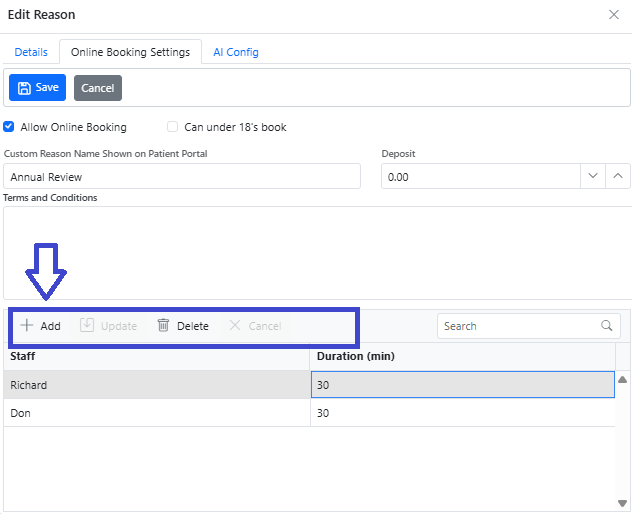
- Click + to add a clinician.
- Update the duration if required.
- Click Update to save the changes.
Deleting a clinician
- Select the clinician by clicking on their name.
- Click Delete.
- Confirm the changes.
Clinician Availability for Online Booking
- Go to
Admin → Rota. - Find the required clinician in the list.
- Right-click on a day to edit an existing slot or create a new one.
Enable online booking for an entire day
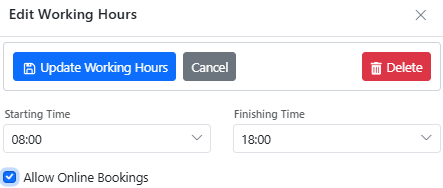
- Select Edit/New Working Hours.
- Tick Allow online booking.
- Click Update Working Hours to save the changes.
Enable online booking for a specific time slot
- Select Edit/New Block.
- Add a new block or edit an existing one.
- Tick Allow online booking.
- Click Save New Block to apply the changes.