Rota
The Rota module
The Rota module allows dental practices to manage clinicians’ working schedules efficiently by setting up and adjusting working hours, lunch breaks, days off, holidays, and recurring shifts.
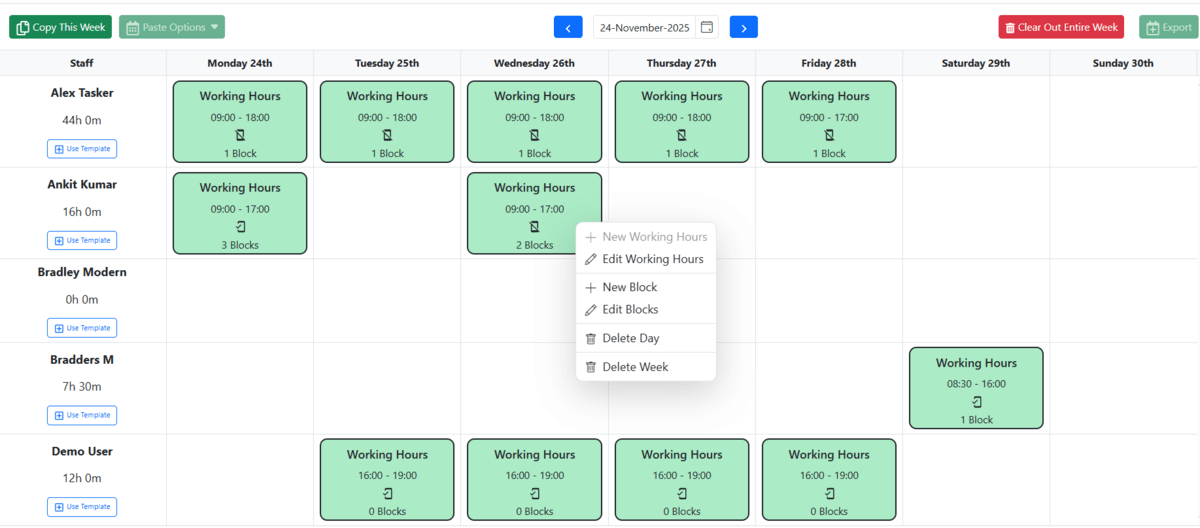
Working hours are presented in a weekly format, where each grid cell represents a clinician on a specific day. The section allows full management of the duty schedule by copying and pasting days, inserting blocks, deleting entries, and exporting the data.
To save time when configuring the rota, you can set up a recurring schedule if a clinician has the same working hours on a regular basis. can
Adding Working Hours
- To add working hours, choose a week to start onfind the clinician you want to update and right-click on the relevant day.
- Select New Working Hours.
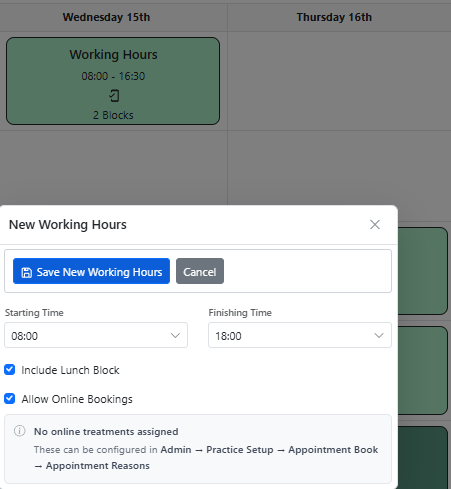
- Enter the start and finish times for the working session.
- You can also choose whether to: Allow online booking or automatically include a lunch break
- Click Save.
The working hours will now appear on the rota.
Adding Breaks and Other Time Blocks
Breaks, lunch periods, and other blocks of time can be added to the working day.
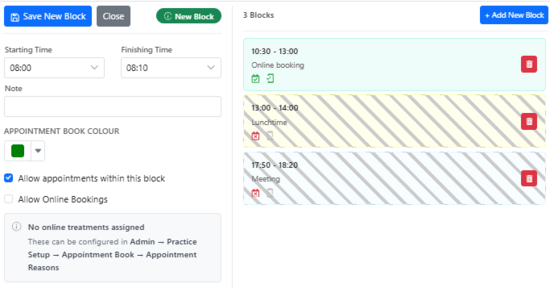
- Right-click on the relevant day and select Add New Block.
- Enter the start and finish times and select a colour for the block.
- The block can be configured to allow or prevent appointments and online bookings during this time. For example, for a lunch break, leave Allow Appointments and Allow Online Booking unticked. Patients will not be able to book appointments during this time.
- Click Save to add the block to the rota.
Multiple blocks can be added throughout the working day.
Recording holidays or time Off
If a clinician is on holiday or unavailable for a full day or week, their working hours can be removed from the rota. The day or week will then appear in dark grey in the Appointment Book, showing that no appointments can be booked during this time.
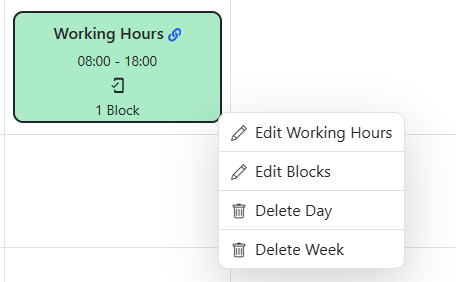
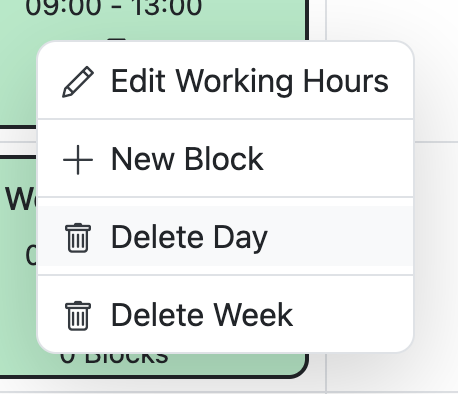
- For a full day, right-click on the relevant day and select Delete Day.
- For a full week, select Delete Week instead.
Adding a recurring schedule
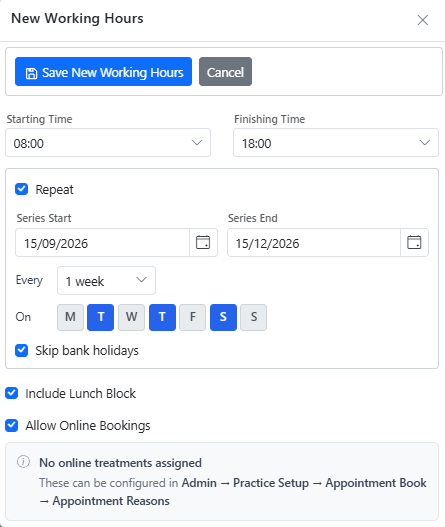
If a clinician works the same hours regularly, you can create a recurring schedule instead of adding working hours manually each week. For example, a clinician works every Monday and Wednesday from 9:00 to 18:00, with a lunch break.

- Right-click on the relevant day and select New Working Hours.
- Enter the start and finish times for the working session.
- Choose whether to: Include a lunch break or Allow online booking
- Enable Repeat.
- Select the start and end dates for the recurring schedule.
- Select the frequency, such as: Every week / Every other week
- Select the day or days when the clinician works.
- Click Save.
- The working hours will be added to the rota automatically for the selected period.
A chain icon will appear next to the working hours to show that they are part of a recurring series.
Editing a week
Editing rota entries
Existing rota entries can be edited when required.
- Right-click on the relevant day and select Edit Working Hours or Edit Blocks.
- Make the required changes and click Save.
Editing a recurring schedule
- To edit a recurring schedule, right-click on the relevant day and select Edit Working Hours or Edit Blocks.
- If the working hours are part of a recurring series, DentalPlus will display three options:
- Edit just this entry – changes apply only to the selected day. The entry is then detached from the recurring series.
- Edit this and following events – changes apply from the selected day onwards. Earlier entries in the series remain unchanged.
- Change all events in the series – changes apply to all entries in the recurring series.
- Select the required option, make the changes, and click Save.
Copying a week
Once you have your week set up, you'll want to apply the same rota to following weeks.
Click the "Copy This Week" button at the top of the screen. Then click the down arrow to the right of the "Paste Options" button.
You have three options here...
- Paste Onto This Week - use this to move to a different week and replace the rota with the one you have copied.
- Paste Between Two Dates - use this to add this rota to all the days between two specified dates, e.g. choose next week to a week in 12 months time.
- Paste on Chosen Dates - use this to paste this week onto specific weeks, e.g. this is a bi-weekly rota.
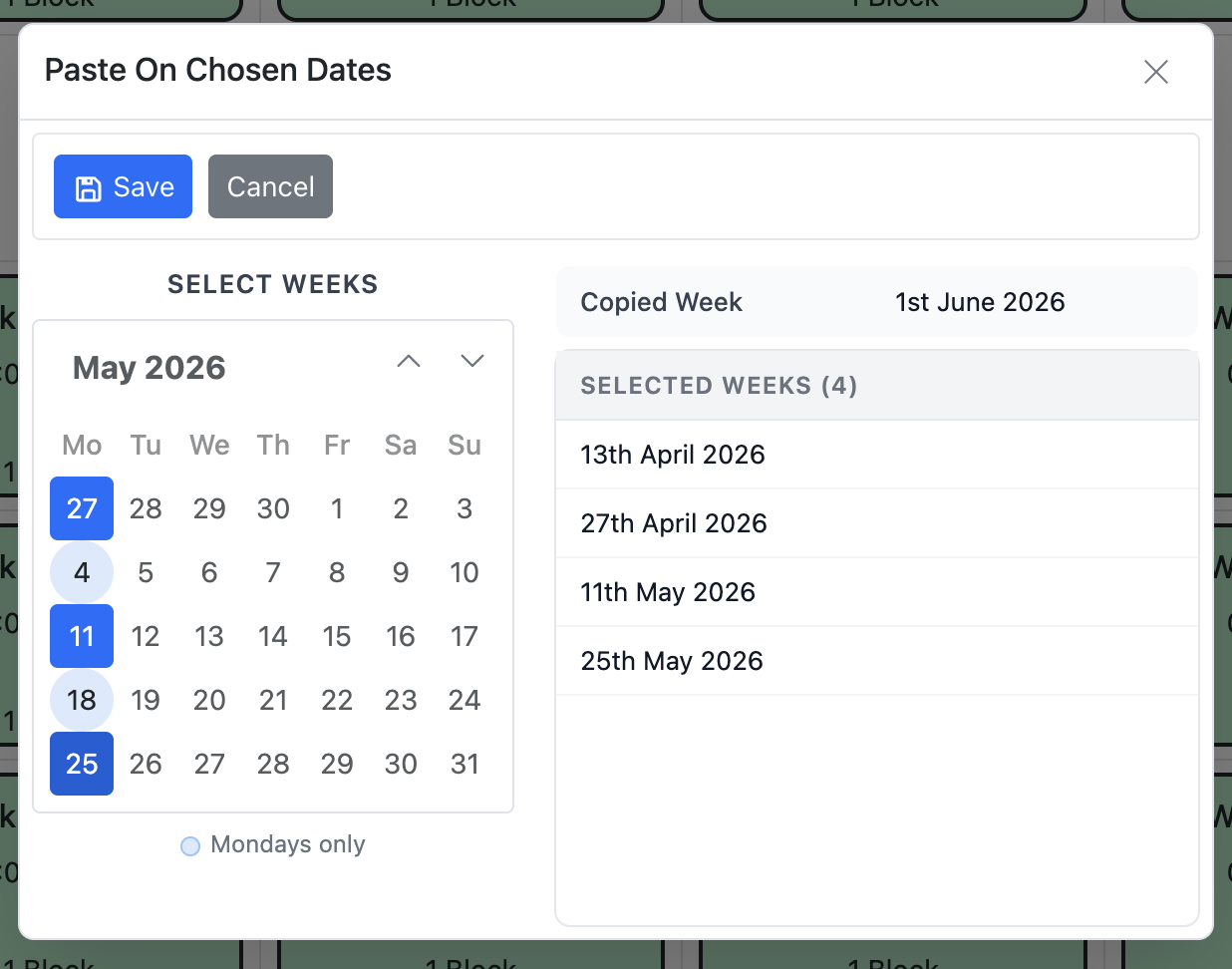
Pasting will overwrite any existing rota for the chosen weeks.
Deleting Rota Entries
Rota entries can be removed when they are no longer needed.
Delete one day for a clinician
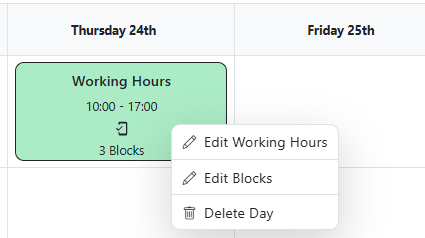
Right-click the relevant day and select Delete Day.
Delete a week or all future rota entries for a clinician
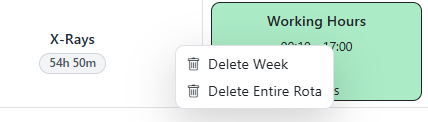
Right-click the clinician’s name and select:
- Delete Week – removes the rota for the current week.
- Delete Entire Rota – removes all future rota entries for this clinician.
Clear a day for all clinicians
Right-click the relevant day at the top of the Rota column and select the option to Clear Day.

Clear the entire week
Right-click the relevant week and select Clear Entire Week to remove all rota entries from that week.

The deleted day or week will then be shown as unavailable (grey) for appointment booking.
Rota Settings
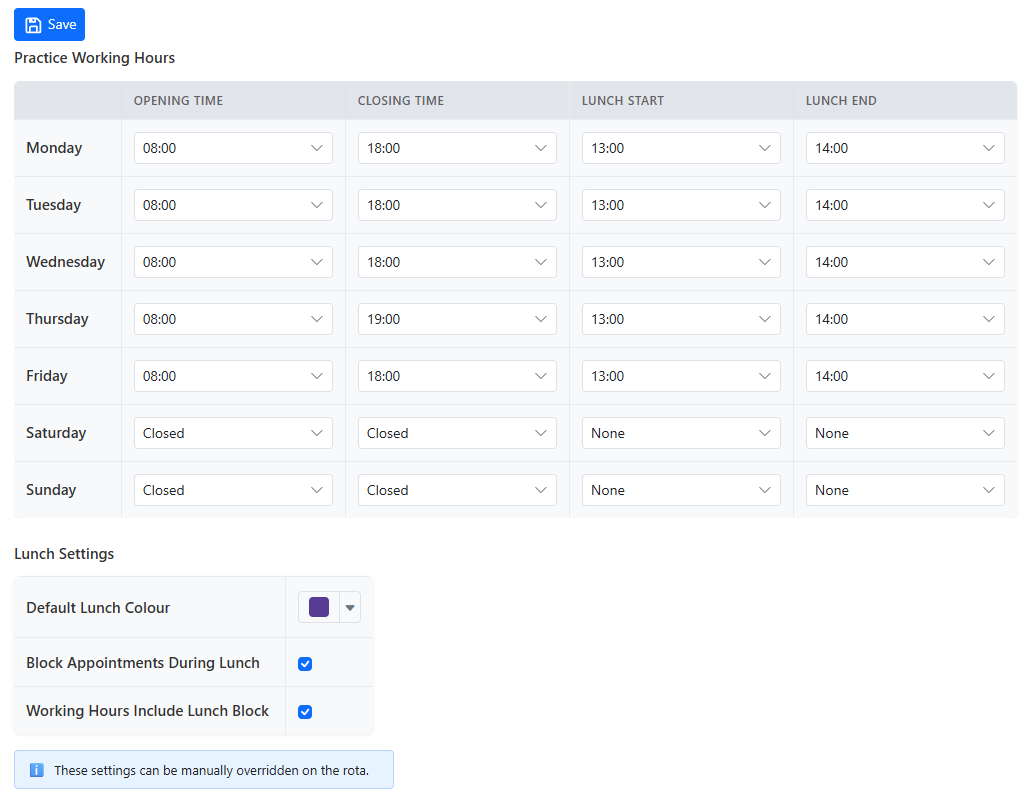
This section allows practice administrators to configure the practice working days and hours, decide whether appointments can be booked during lunchtime, and set working hours for each clinician.
A lunch block can be automatically applied to a clinician’s working hours when their hours are configured. These settings can be easily adjusted or overridden later in the Rota section.