User Setup
User Setup is used to manage the users who have access to your DentalPlus system.

Adding Users in DentalPlus
Creating a New User
- Go to
Admin ->User Setup ->Practice Staff Members
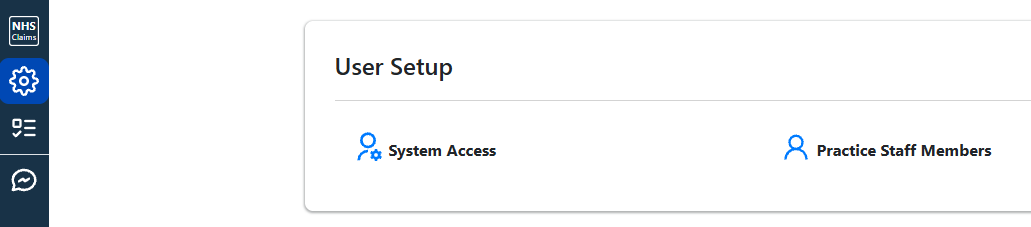
- Click New Staff Member in the top-right corner.
- Enter the user's details.
- The Email Address can be left blank initially and added later.
- Click Save.
The new user will now appear in the staff list.
Sending the User Invitation
- Go to
Admin ->User Setup ->Practice Staff Members - Open the user accoubt by clicking Manage.
- On the Details tab, enter the user's email address.
- Click Check and Send Setup Email.
The user will receive an invitation email to create their password and access DentalPlus.
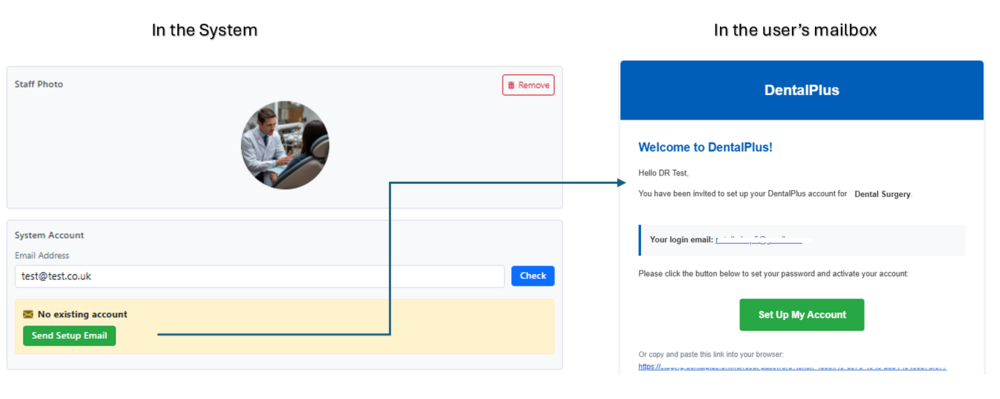
A unique email address is not required. If the user already has a DentalPlus account (for example, from another practice), the system will recognise the account and simply grant access to the new practice.
NHS and DEPPA Settings
The NHS and DEPPA tabs allow you to configure settings specific to these services, where applicable.
User Preferences
The Preferences tab allows you to configure default settings for the user, including:
- Default language
- Recall period used for automatic recall reminders for patients without future appointments
- Default appointment reason
- Other personal preferences
- Access Control
The Access Control tab allows you to restrict when and where users can access DentalPlus: Read more...
Available options include:
- Restrict access outside working hours
- Restrict access outside the practice network
Network restrictions require additional system configuration.
Personal Note Templates
Users can create their own note templates that are available only to them. These templates can be used when creating notes and other records. Read more
Email Signature
Each user can create a personal email signature for patient communications.
The editor allows users to:
- Format text
- Insert images
- Add clickable links
User Permissions
Permissions determine which areas of DentalPlus a user can access. Select the appropriate permission level based on the user's role:
- Level 2 - Receptionists and Nurses
- Level 3 - Dentists, Hygienists and Clinicians
- Level 4 - Practice Managers
- Level 5 - Administrators
After selecting a permission level, DentalPlus automatically applies the default permissions for that role. Read more...
If required, permissions can be customised for an individual user:
- Expand the required permission group.
- Tick or untick the required permissions.
- Click Save Permissions.
- Managing Permission Levels
Removing User Access
When it comes to deleting users, you can deactivate a user account by removing their access.
To deactivate a user:
- Go to
Admin → System Access. - Find the user in the list.
- Click Remove Practice.
- Click Save.
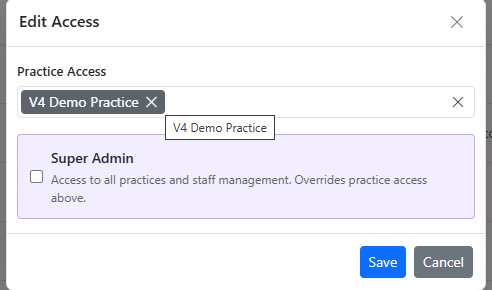
The user will no longer appear in the list of active users but their historical activity will remain linked to their account for audit purposes.
Access Control
Located in the Admin section → Practice Setup → General Settings is the security tab.
There are three settings here to control staff access to DentalPlus.
-
Two-factor Authentication.
Turning this on will require all users to enter an emailed code when they log into DentalPlus. The email is automatically sent to the users email address. -
Out of hours access.
If you have the per-user setting on to prevent access outside of the practice working hours, use the Outside Hours Access Requests option so your users can request access outside of the practice hours. If a user attempts to log in outside of the practice working hours, they click a button to request access and an email is sent to all system admins to ask for access. When the anyone responds to that, the user can then log in, or it can be blocked by the admin user. Admin users are not included in this restriction. -
Login IP Rerstriction
If you only want users to have access to DentalPlus from within the practice, use the IP updater script on one of your most used practice computer (we recommend your server) to tell DentalPlus what IP address your users can log in from. This will prevent access from outside the practice. Admin users are not included in this restriction.
System Permission Levels
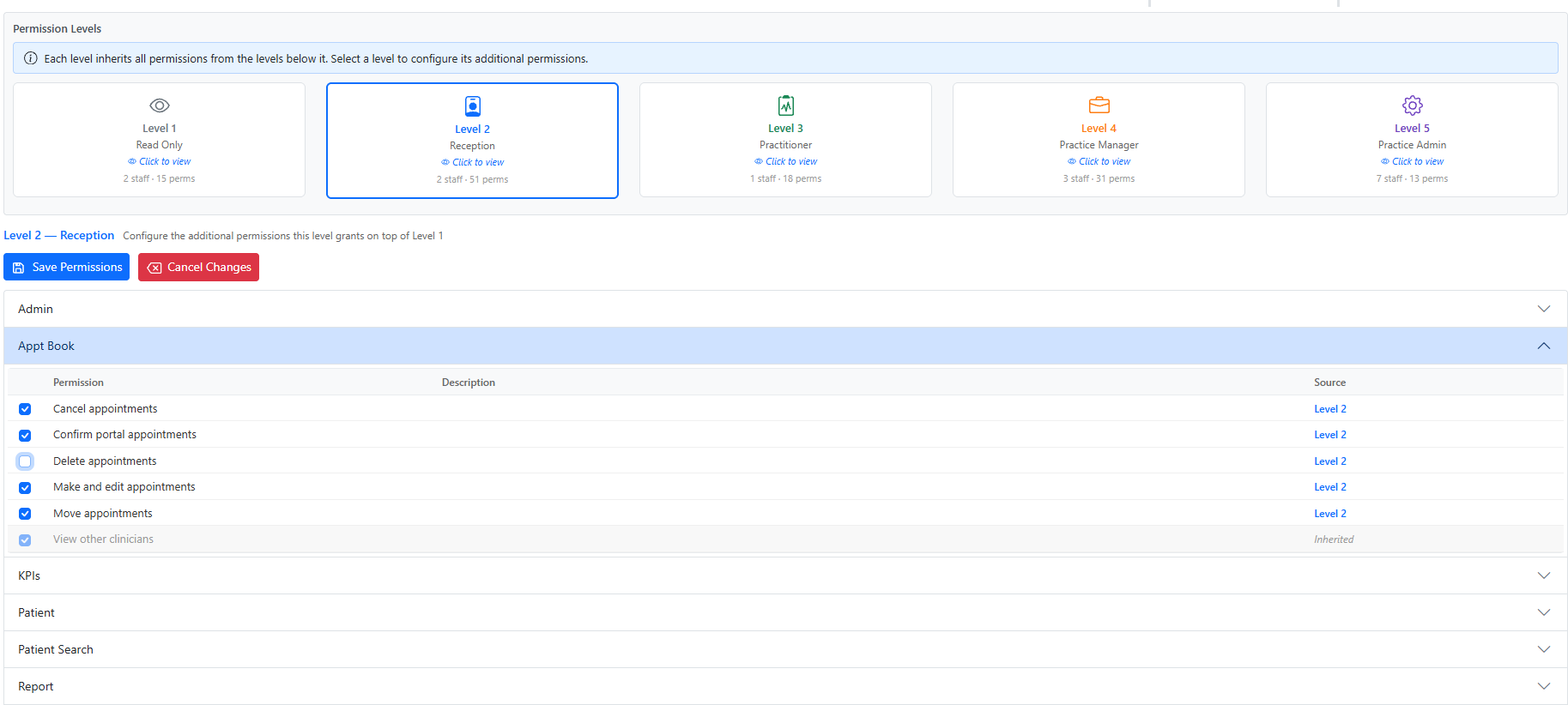
The Permission section controls access to different features and areas of the system. Permissions are organised into five levels, making it easier to manage user access.
- Level 1 - Read Only
- Level 2 - Receptionists and Nurses
- Level 3 - Dentists, Hygienists and Clinicians
- Level 4 - Practice Managers
- Level 5 - Administrators
If you want to update permissions for all users with the same access level:
- Go to
Admin → Practice Setup → Permission Levels. - Select the required Permission Level.
- Expand the relevant Permission Group.
- Tick or untick the permissions you want to change.
- Click Save.
Any changes made here will apply to all users assigned to that permission level.