Medical Forms
How to send a medical form for completion
- Open the Patient Record and navigate to the Form Form Requests section. (1)
- Click Send New Request. (2)
- Select one or more forms from the list.
- Choose the notification method: email, SMS or tablet.
- Set the expiry period for how long the web link will remain valid.
- Add a message (optional)
- Click Send Request. (3)
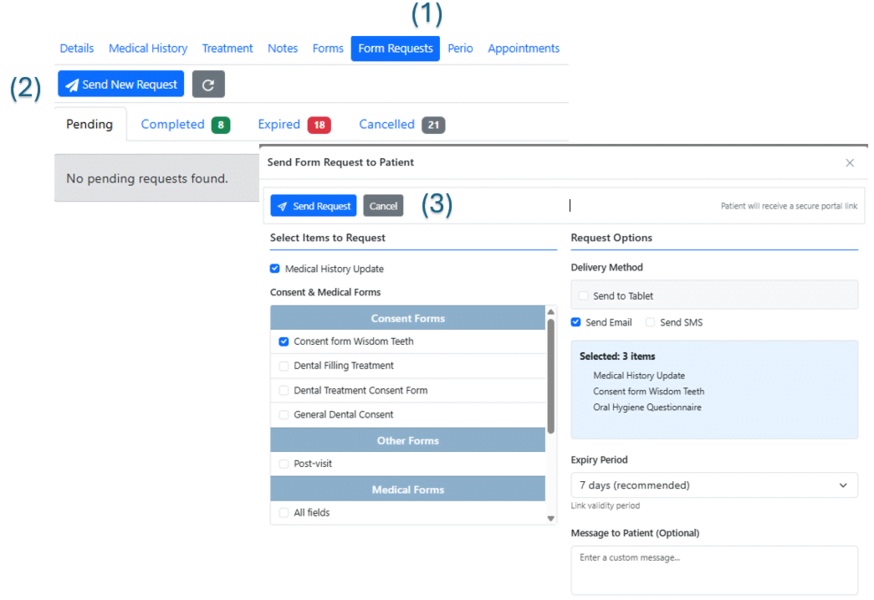
The system delivers medical forms to patients through several methods:
- Sending emails with an interactive link
- Sending SMS messages with a secure link
- Displaying a QR code on screen for scanning with the tablet app
- Sending automatic requests to dedicated tablets that are pre-configured in the system
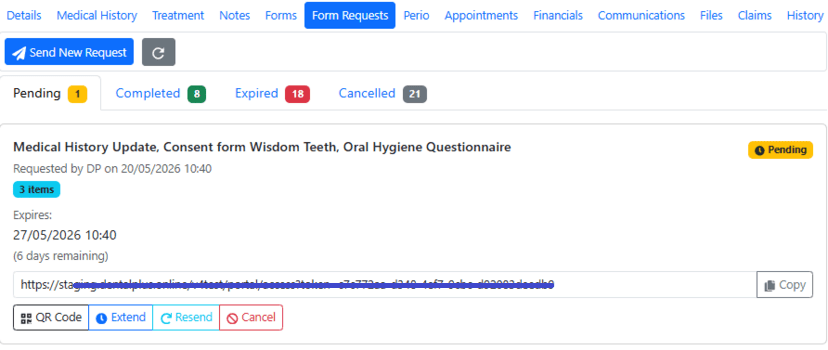
Form Requests dashboard
- A new form request appears in the Portal Request dashboard with the status Pending.
- A user can view details of each request, resend it, extend it or cancel it if needed.
- If a patient has not completed the medical form before their appointment, the system allows staff to display and scan a QR code for use with the DentalPlus Sign Tablet App.
- Once the form has been completed, it moves to the corresponding tab for logging and future access.
How to find a completed form
When a patient receives the request and completes the form it appears under the Patient Record.
- Open the Patient Record and navigate to the Forms section.
- In the left-hand panel, expand the list of forms by clicking the arrow next to the relevant folder.
- Select the required form from the list.
- The form will open and display on the screen.
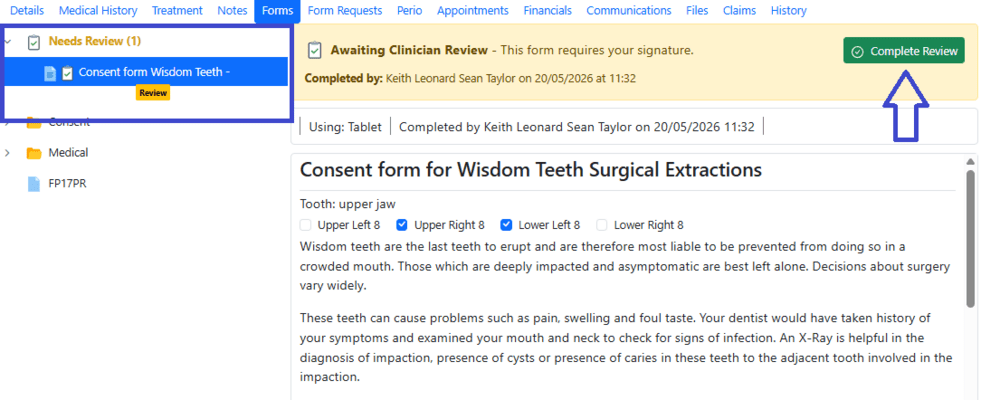
Medical form is avaiting clinician review
- If a medical form signed by the patient before the appointment requires clinician review, the system highlights it to draw attention and ensure appropriate follow-up.
- The form is placed in the dedicated “Needs Review” folder.
- A practitioner must open the form, review its contents, and complete the necessary sign-off.
Managing Patient Forms
- Go to the Patient Record → Forms.
- Expand the relevant folder in the left-hand panel.
- Select the required form from the list.
- When a form is loaded, it can be edited and deleted (if unlocked).
- Forms that require clinician review are clearly highlighted until reviewed.
note
If forms contain signatures they become locked and cannot be edited or deleted.

Queue form for signing
Queue for Signing functionality does not send a form immediately. Instead, it adds the selected form to an upcoming Portal Request, which can then be sent to the patient later as part of the digital workflow.
This functionality also allows extra details to be added to a medical form before it is sent to the patient.