Patient Financials
The section provides a chronological overview of patient financial activity, including: Invoices, Payments, Deposits, Amendments .
Invoicing
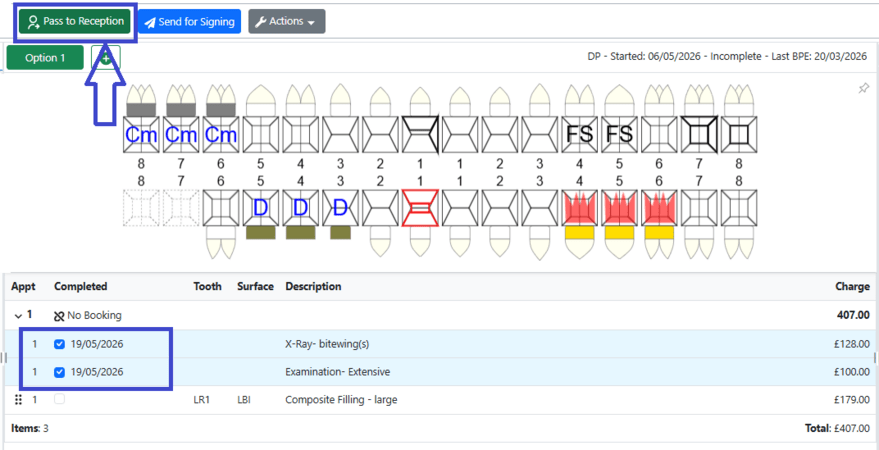
- Open the Patient Record and go to the Treatment section.
- Tick the “Completed” checkbox next to each treatment in the treatment plan.
- Click “Pass to Reception” on the top toolbar
- Check details: date, staff member and payment terms.
- Save invoice
- The invoice will appear in the Patient Financials.
How to take a payment…

- Open the Patient Record and go to the Financials section.
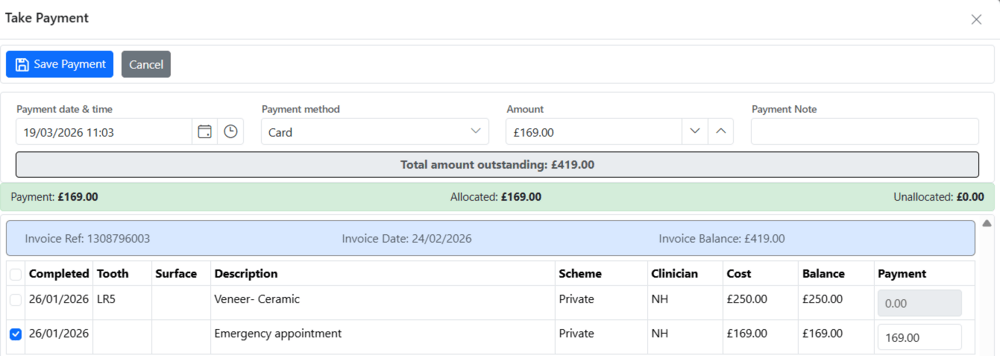
- Click ‘Take Payment’
- Select the date and payment method.
- Enter the amount to be paid
- Allocate this payment to outstanding invoices if required
- Click ‘Save payment’
- The payment will appear on the list.
The system allocates payments to specific treatments. Uncheck a treatment to link the payment to the corresponding one.
How to take a deposit …
A deposit payment is not allocated to any existing invoice. It remains available until the user decides to link and apply it.
- Open the Patient Record and go to the Financials section.
- Click ‘Take Deposit ’
- Select the date and payment method.
- Enter the amount to be credited
- Choose who the deposit is credited to.
- Click ‘Save deposit’
- The payment, being coloured yellow, will appear on the list.
Each deposit is required to be allocated to the invoice.
How to allocate a deposit…
- Open the Patient Record and go to the Financials section.
- Right-click the required invoice and select ‘Allocate Payment’.
- Choose an available pre-payment from the list, then click ‘Save Payment’.
Only one payment can be allocated at a time, so if multiple deposits need to be applied, repeat these steps
Expand the deposit details to see which treatment it is allocated to, how much has been used, and the remaining balance.
Processing a sundry sale…
- Open the Patient Record and go to the Financials section.
- Click ‘Sundry Sale’
- Select an item from the menu
- Change the price if necessary
- Choose quantity
- Assign the sale to a specific clinician or practice
- Click ‘+Add’
- Repeat these steps if needed
- Click ‘Save’ to submit the invoice
How to edit payment details…
- Open the Patient Record and go to the Financials section.
- Right-click on the payment and select “Edit Payment”
- The following details can be edited:
- Staff – this will automatically be the default clinician of that patient
- Payment method – how the payment was made
How to delete payment…
- Open the Patient Record and go to the Financials section.
- Right-click on the required payment and select Delete Payment
- A pop-up will appear — enter the reason for deletion and click “Delete.”
- The payment will be marked as deleted.
Deleted payments remain visible in Financials. They appear in grey and can be viewed by using Filter → Show Deleted Items.
How to manage financial documents…
Printing
- Open the Patient Record and go to the Financials section.
- Invoice – Right-click the invoice and select “View Invoice” to print or email it.
- Receipt – Right-click the payment and select “View Receipt” to print or email it.
- Statement – Click “Print Statement” on the toolbar. The statement will open as a PDF, which can be printed, emailed, or saved.
Emailing
- Select the required document by ticking the box in the left column in Financials.
- Click the ‘Email’ icon on the toolbar.
- Choose a template, select a signature, and send it to the patient.
Financial amendments…
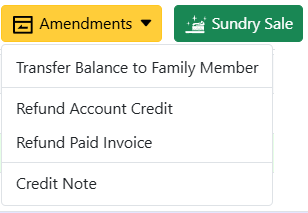
Depending on the situation, the system allows for refunding account credit and paid invoices, transferring balances within a family member, and issuing credit notes.
Transfer Balance to a Family Member
A patient’s positive balance can be transferred to a linked family member.
- Open the Patient Record → Financials section and click ‘Amendments’.
- Click ‘Transfer Balance to Family Member’
- Select a family member.
- Choose an available payment or payments.
- Enter an amount
- Click ‘Transfer Balance’.
A corresponding record will show in both patient records.
Issue a Credit Note:
A credit note can be issued to reverse all or part of an invoice, generating a corresponding credit on the patient’s account. It might be used for future treatments or issued immediately.
- Open the Patient Record → Financials section and click ‘Amendments’.
- Click ‘Credit note’
- Select a reason and date, and enter the amount.
- Click ‘Save Credit Note’.
- Records marked in red will appear in the list and can be used for future invoices.
You can issue an immediate refund if the patient requests it. Simply tick the appropriate box and select the refund method.
Refund Account Credit:
If a patient has a positive balance, the refund can be processed directly from the available account credit.
- Open the Patient Record → Financials section and click ‘Amendments’.
- Click ‘Refund Account Credit’
- Select a reason and date, enter the amount, and choose the refund method.
- Select a payment to be refunded
- Click ‘Save Refund’.
The record, coloured in purple, will then show on the list.
Reduce/Refund a paid invoice:
A paid invoice can be refunded by applying a discount that reduces the original charge and updates the patient’s account accordingly. This option is applicable only when the patient’s balance is zero or negative.
- Open the Patient Record → Financials section and click ‘Amendments’.
- Then click ‘Refund Paid Invoice’
- Select a reason and date.
- Choose the invoice to be adjusted
- Enter the amount
- Click ‘Apply Credit Note’.
- The record, marked in red, will then appear in the list and will be ready for future use.
You can issue an immediate refund if the patient requests it. Simply tick the appropriate box and select the refund method.