Practice Manager Guide
Access tailored guidance for key roles within the practice
User setup
The User Setup section allows administrators to create and manage user accounts. Here, you can define user roles, assign permissions, and control access to different features, ensuring each team member has the appropriate level of access. Proper configuration of the User Setup section helps maintain data security, supports efficient workflows, and ensures compliance with practice policies.
How to create a new user
- Go to
Admin > Practice Staff Members - Click + New Staff Member in the top toolbar.
- A blank staff member form will open. Enter the relevant details.
- Click Create. The new staff member will then appear in the list.
- Continue configuring the user account.
- Review user details.
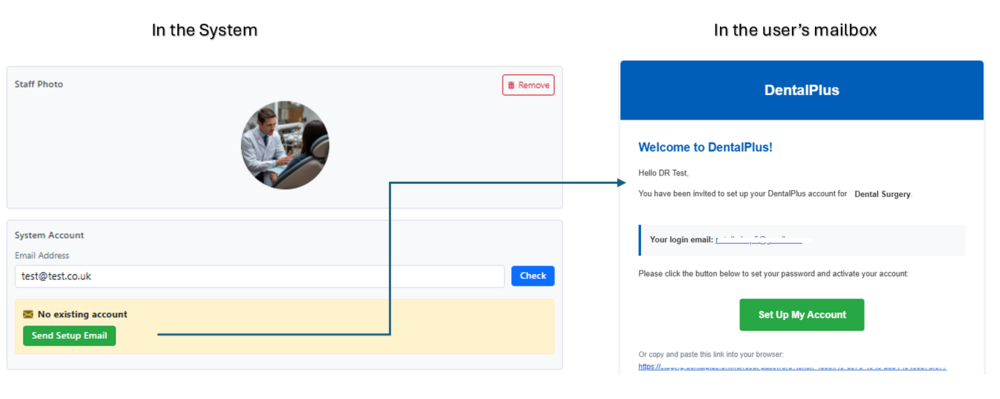
- Add Email Address for for system access and send the invitation link. Once received, the user can complete the account setup.
- Set up Preferences.
- Create Personal Clinical Notes. --->>> Read more
- Add an email signature.
- Configure Permissions.
- Save a user account
- Go to
Admin > System Access - Find the user in the list.
- Click Edit to review practice access and add another site if applicable.
- Save the changes.
How to send or re-sent an invitation to an existing user
- Go to
Admin > Practice Staff Members - Find the staff member in the list.
- Click Manage
- On the Details tab, enter or update the user's Email Address.
- Click Check. The system will verify whether the email address has already been registered.
- The system will then offer the option to Send or Re-send the Setup Email
- Once the user receives the email, they can complete the account setup and access the system using their email address and password.

How to set/update user permissions
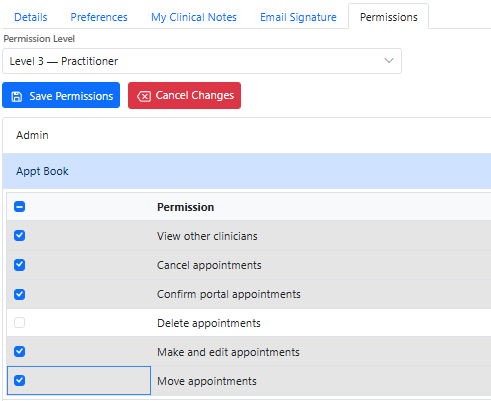
The system allows to assign a predefined set of permissions by levels (from 1 to 5), or to configure custom permissions by selecting individual options from the list below.
- Go to
Admin > Practice Staff Members - Find a Staff Member in the list.
- Click Manage
- Navigate to the Permissions tab.
- Choose a predefined permission level:
- Level 1: Read Only
- Level 2: Reception
- Level 3: Practitioner
- Level 4: Practice Manager
- Level 5: Practice Admin
- Alternatively, expand the permission folders and configure access manually.
- Click Save
How to update user settings
- Go to
Admin > Practice Staff Members - Find a Staff Member in the list.
- Click Manage
- Make the relevant changes
- Click Save
How to delete a user
- Go to
Admin > System Access - Find a user in the list.
- Click Edit
- Remove the Practice name from the Access options
- Click Save
From this point, the user will no longer have access to the system.
Rota
The Rota module provides tools to set up and adjust working hours, lunch breaks, days off, holidays, and recurring shifts.
Working hours are presented in a weekly format, where each grid cell represents a clinician on a specific day.
How to add working hours
- Go to
Admin > Rota - Find a user in the list.
- Navigate to the required week.
- Right-click the corresponding day (grid cell).
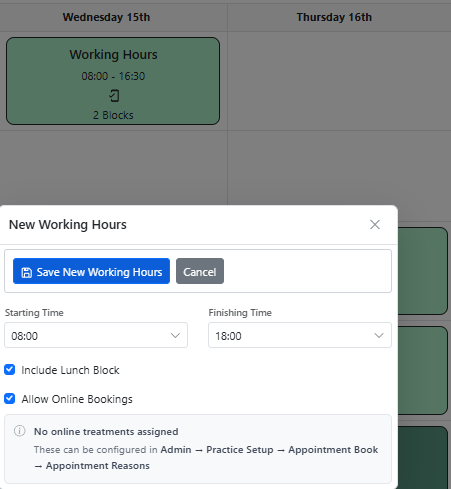
- Click New Working Hours
- Configure the time slot
- Click Save
How to add a time block
Breaks such as lunch or specific working or off time slots can be easily added to the schedule.
- After adding working hours, right-click the corresponding day (grid cell).
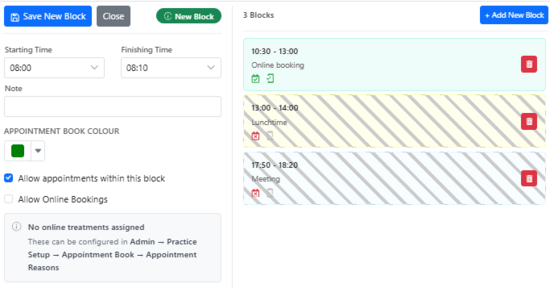
- Click +Add New Block
- Configure the time block by setting the time range, colour, appointment availability, and online booking options.
To restrict appointment booking for a time block, simply untick Allow Appointments and Allow Online Booking.
- Click Save.
- Repeat these steps to add additional blocks if required.
- Click Close.
How to add a recurring schedule
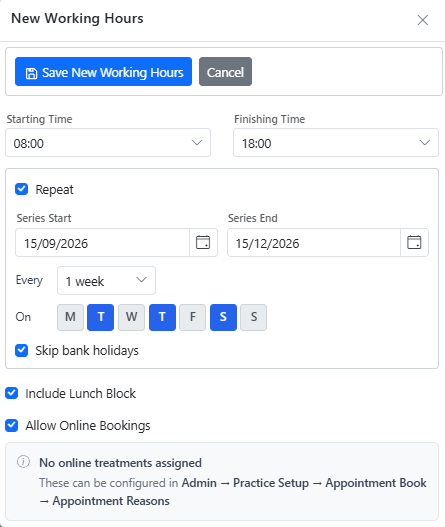
If a clinician works the same hours regularly, you can create a recurring schedule instead of adding working hours manually each week. For example, a clinician works every Monday and Wednesday from 9:00 to 18:00, with a lunch break.
- Right-click on the relevant day and select New Working Hours.
- Enter the start and finish times for the working session.
- Choose whether to: Include a lunch break or Allow online booking
- Enable Repeat.
- Select the start and end dates for the recurring schedule.
- Select the frequency, such as: Every week / Every other week
- Select the day or days when the clinician works.
- Click Save.
- The working hours will be added to the rota automatically for the selected period.
A chain icon will appear next to the working hours to show that they are part of a recurring series.
How to use a Rota template
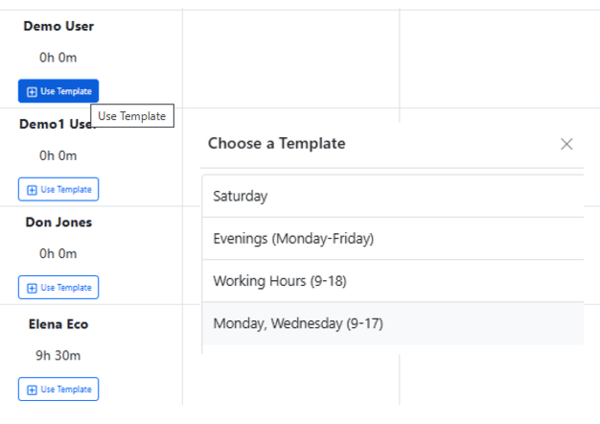
The system provides a range of pre-set Rota templates, eliminating the need for repetitive manual entry.
- Go to
Admin > Rota - Find a user in the list.
- Navigate to the required week.
- Click +Use Template button under the user name
- Click one of the avaliable templates.
- The system will automatically populate the working hours based on the saved schedule.
How to record a Holiday leave
- Go to
Admin > Rota - Find a user in the list.
- Navigate to the required week.
- Right-click the relevant day.
- Select Delete Day or Delete Week, as required.
This day/week will appear in dark grey, and appointments cannot be booked during this time.
How to edit working hours or time blocks
- Go to
Admin > Rota - Find a user in the list.
- Navigate to the required week.
- Right-click the relevant day.
- Click Edit Working Hours or Edit Blocks
- Make changes and Save
How to delete working hours
- Go to
Admin > Rota - Find a user in the list.
- Navigate to the required week.
- Right-click the relevant day.
- Select Delete Day or Delete Week, as required.
This day/week will appear in dark grey, and appointments cannot be booked during this time.
Practice Reports
Running a dental practice efficiently depends on having quick access to the right information. DentalPlus offers a range of reports designed to help you track patient activity, manage finances, and keep day-to-day operations on track.
The Dashboard
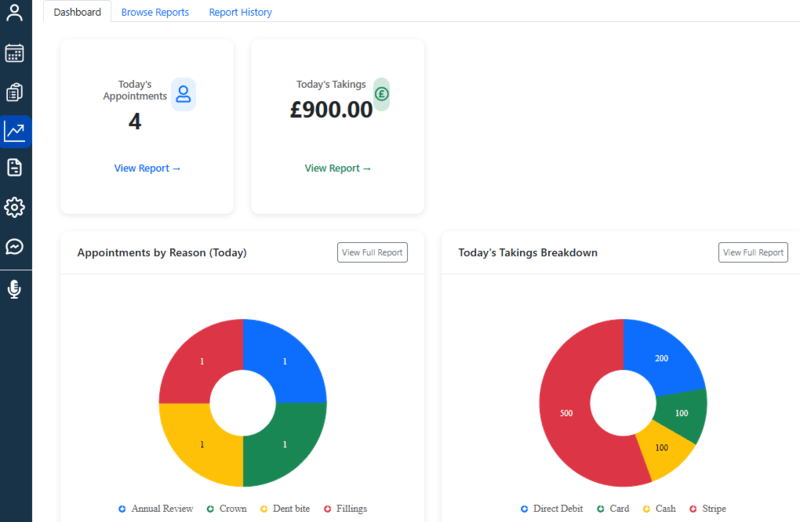
The tab can be accessed through the main left menu by clicking Reports, which displays real-time graphs and figures, giving you a quick view of today’s activities, including treatments performed and takings received.
Browse reports
Under this tab, users will find detailed reports which provide detailed, actionable insights that help dental teams monitor performance, track progress, and make informed decisions to improve efficiency and patient care.
- Click the required report to display the available filters.
- Set the filters and generate the report.
- The results will be displayed on the screen.
- From the results, you can:
- Print the report for further use, or
- Select patients from the list and send batch communications using the Create Document functionality.
To find reports more quickly, you can search by report name or use filters to narrow down the list.
Previous reports
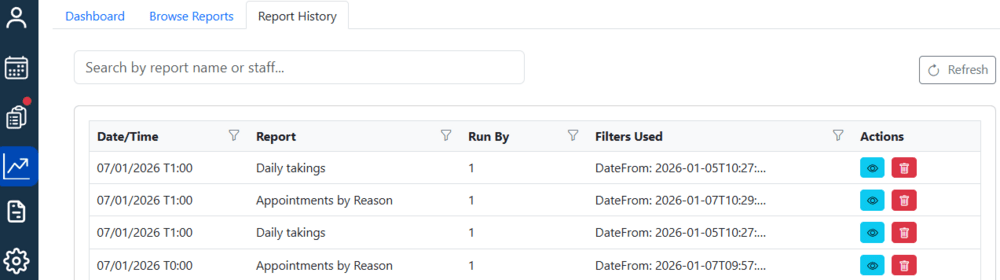
This tab allows you to access data from previously run reports. Simply search for a report by name, click the eye icon to view the results, or delete it if necessary.
The Dashboard is designed to give you an immediate overview of what’s happening in your practice today, while the Reports tabs provides more detailed insights. Additional reports are continuously added to enhance the dashboard and provide a fuller picture of practice activity.