Receptionist Guide
Access tailored guidance for key roles within the practice
DentalPlus Log in
- Users can access the system using their email address and password.
- For enhanced security, two-factor authentication (2FA) and passkey login can also be enabled, providing additional protection for users with admin level access.
- For multi-site users, select the appropriate clinic upon login.
DentalPlus Sections
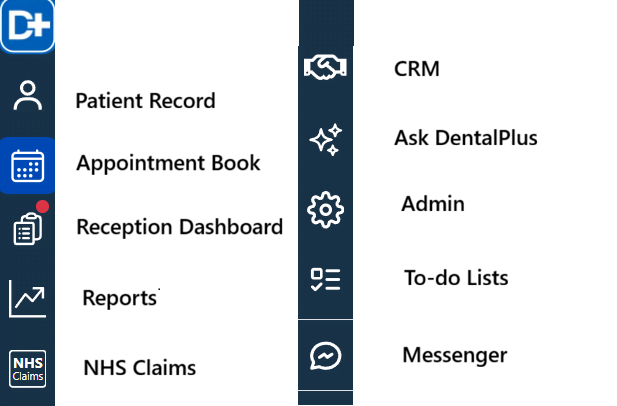
Each DentalPlus section can be accessed through the navigation buttons on the left pane, which are displayed according to the user's access level.
DentalPlus Toolbar
The DentalPlus toolbar provides access to various functions and features, depending on the user's role and permissions.

Clicking on the username in the top-right corner opens the System Configuration menu, where users can:
- change practice (if applicable),
- view user details,
- access the Help Documentation,
- or contact the support team.
Patient Record
How to Create a New Patient Record
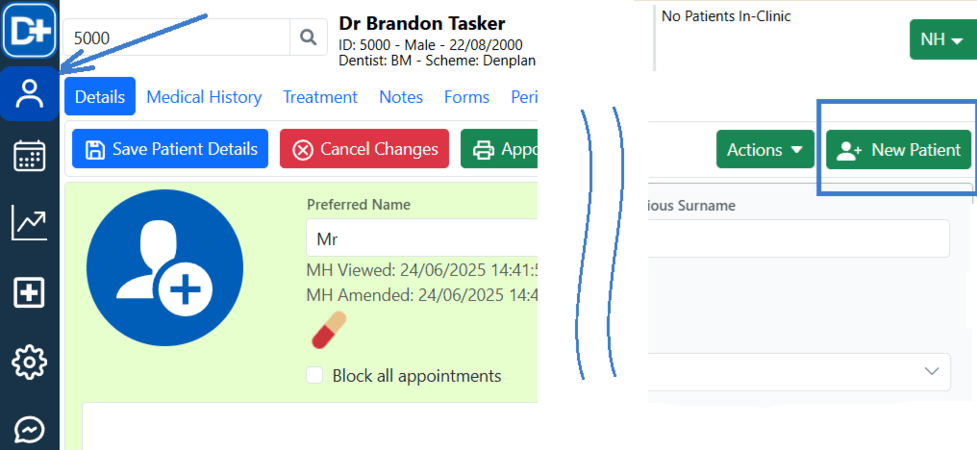
In the Patient Record
- Go to the Patient Record
- Click “+New Patient”
- Enter patient details.
- Click Save
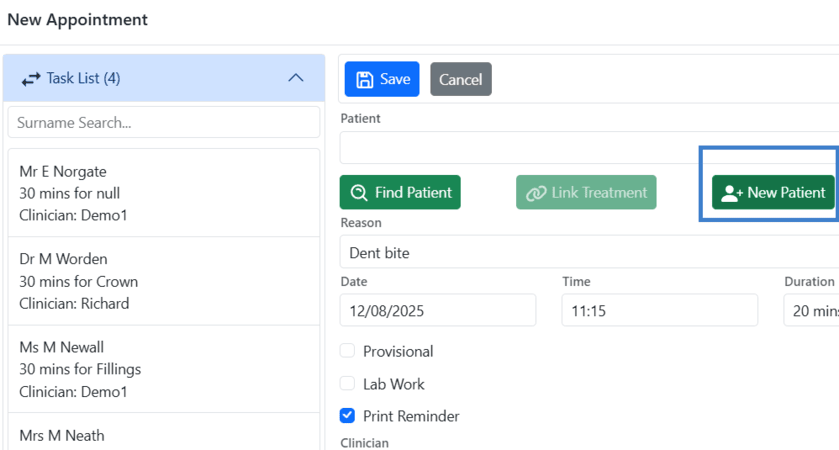
When making an appointment
- Go to the appointment book
- Right-click and select New Appointment
- Click “+New Patient”
- Enter patient details.
- Click Save
- Continue booking the appointment.
Each patient has a unique ID for easy identification and accurate record keeping (e.g ID:5000).
How to Delete a Patient Record
- Navigate to the Patient Record.
- Click on the ‘Status’ drop-down menu.
- Select the appropriate status from the list.
- Save Patient Details to apply the changes.
How to update patient contact preferences
Following GDPR, patients must be given the option to choose how they wish to be contacted. DentalPlus offers several ways to manage contact preferences:

- Via the Preferences tab in the Patient Record
- During patient check-in via the Waiting Room
- Sending the form request to the Tablet app
Tick the appropriate options for how the patient wants to receive reminders and save the changes. A record of the update will be automatically saved in Patient Record> History.
We recommend enabling at least one method for Reminders and Recalls. These are classified as essential communications for care and do not require explicit consent. However, you must request permission for sending Marketing Newsletters and Offers.
Completing Medical Forms
Patients can complete the Medical History Form, consent forms and other questionaries in one of three ways.
Online via Form Request
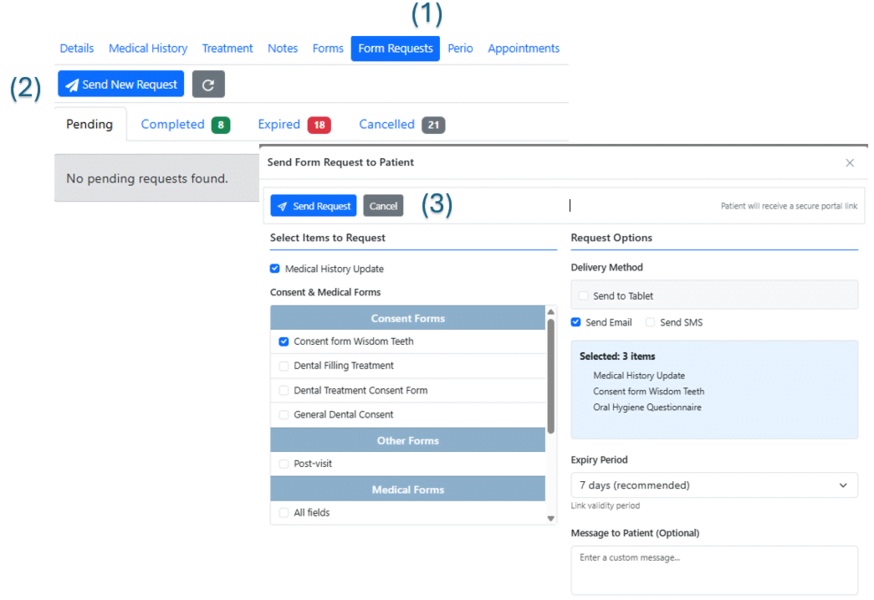
- Open the Patient Record and navigate to the Form Requests section. (1)
- Click Send New Request. (2)
- Select one or more forms from the list. Choose the notification method: email or SMS
- Set the expiry period for how long the web link will remain valid.
- Add a message (optional)
- Click Send Request. (3)
- A patient receives an email or SMS, logs into the Portal using a link, and completes the form.
- Once submitted, the completed form appears in
Patient Record > Medical History. orPatient Record > Forms. with the note “Completed in portal”.
Read more about Patient Digital Workflow
Sending an appointment reminder
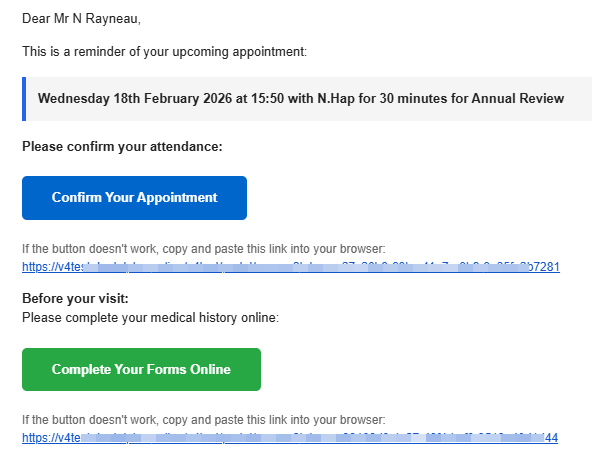
A user within the practice can create and send a manual request to an individual patient or include the link in automated communications, such as reminders, recalls, or exit communications.
- Open the Patient Record and navigate to Communications.
- Choose the notification method: email/sms
- Select a specific template that contains a request for completing a medical history form, e.g. 'Appointment reminder'
- Click Send.
- A patient receives an email or SMS, logs into the Portal using a link, and completes the form.
- Once submitted, the completed form appears in
Patient Record > Medical History. orPatient Record > Forms. with the note “Completed in portal”.
Online via the Patient Portal
Existing patients can access the Portal through a dedicated link using email address and date of birth and complete forms before appointment.
- Open the portal link in a web browser.
- Enter the registered email address.
- The system verifies whether a patient with this email exists.
- A verification code is sent to the email address.
- Enter the verification code to access the dashboard.
- Once verified, the patient is logged into their account.
- Go to the Medical History to update it
- Click 'Pending Requests' to display all forms waiting to be completed.
- Once submitted, the completed form appears in
Patient Record > Medical History. orPatient Record > Forms. with the note “Completed in portal”.
Read more about Patient Digital Workflow
On a tablet in the practice
Patients can complete Medical forms using a tablet, either at Reception or in Surgery.
On a computer:
- Open the Patient Record and navigate to Form Requests.
- Click Send New Request.
- In the pop-up window, tick "Medical History Update"
- Select the delivery method "Send to Tablet'. The system allows to select a specific device or scan the QR code from the screen.
On a tablet:
- Open the Digital Signature app.
- Scan the QR code to access the form.
- The patient medical form will appear
- Hand the tablet to the patient to complete it.
Once submitted, the completed form appears in
Patient Record > Medical History. orPatient Record > Forms. with the note “Completed in portal”.
Read more about Patient Digital Workflow
Patient Files
The Files area is a centralised organiser that lets you store all patient information in one place, making it easy to manage and access important documents.
Users can create folders, upload files, copy and paste documents, and delete items as needed. This helps streamline workflows, ensures key information is readily available, and keeps patient records organised and secure.
Appointment Book
How to book an appointment
| Appointment Book | QuickFind | Patient Record |
| 1) Navigate to the desired date and time within the Appointment Book. 2) Locate the relevant clinician’s column and right-click on the preferred time slot. 3) Click “New Appointment.” In the appointment window, enter all required details and click “Save” | 1) Click the QuickFind icon in the Appointment Book toolbar. 2) Enter the required appointment criteria: date, clinician, reason, duration 3) The system will display a calendar view of all available slots (available times are green, selected times are red). 4) Browse through, click the preferred time slot to book and save. | 1) Go to the Appointments tab and click “New Appointment” 2) Enter the required appointment criteria: date, clinician, reason, duration 3) The system will display a calendar view of all available slots (available times are green, selected times are red) . 4) Click the preferred time slot to book and save. |
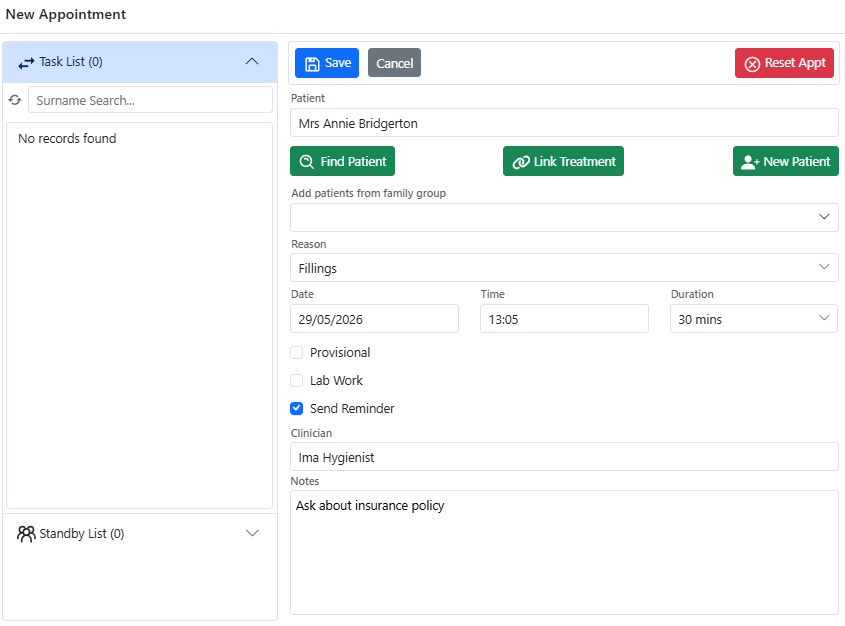
- Lab Work: Use this option to note the expected return date of lab work.
- Send Reminder: Enable this to send reminders via SMS, email, or letter. A document template can be set as a default in:
Admin > Communication Settings.- Link Treatment: Assign future treatments to this appointment for income forecasting purposes
Reception dashboard
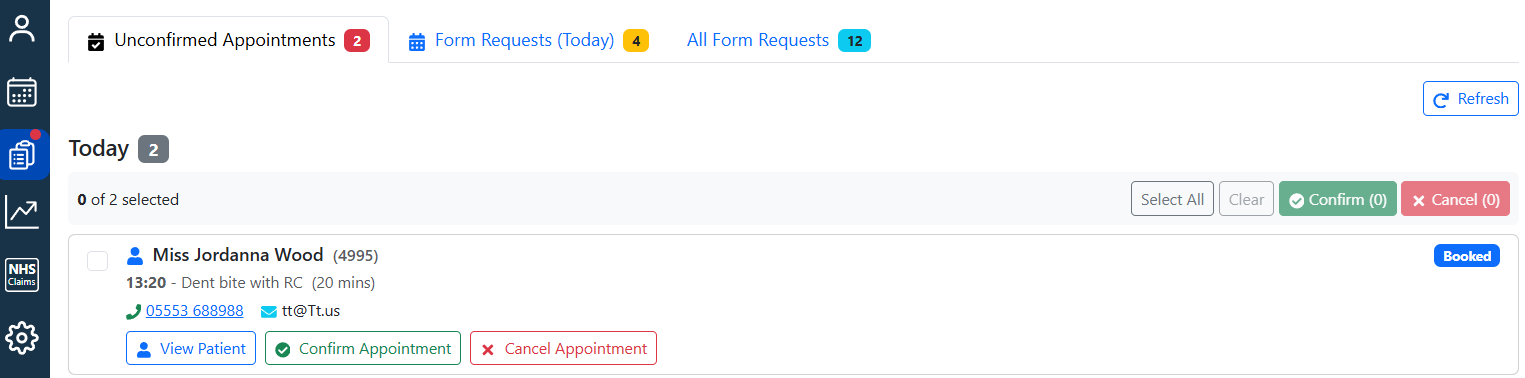
The system has an option to book all appointments with a provisional status, meaning they must be confirmed either by the patient or by the practice.
How appointments are confirmed:
- The system automatically sends appointment reminders and tracks whether the patient has clicked the confirmation button.
- The Reception Dashboard highlights appointments scheduled for today or tomorrow that still require confirmation
- If confirmation has not been received, the reception team follows up with those patients directly, helping to reduce missed appointments (FTAs).
How to edit appointment details
In the Appointment Book …
| Change time | Change duration | Change clinician |
| 1. Hover your mouse pointer over the appointment. 2. Drag and drop it into the required time slot under the same clinician. 3. A ‘Change Appointment’ window will appear to confirm the changes 4. Click “Save” to apply | 1. Hover your mouse pointer over the bottom edge of the appointment. 2. The pointer will change to a double-sided arrow. 3. Drag down to adjust the duration. 4. A ‘Change Appointment’ window will appear to confirm the changes 5. Click “Save” to apply | 1. Hover your mouse pointer over the appointment. 2. Drag and drop it into the required time slot under the new clinician. 3. A ‘Change Appointment’ window will appear to confirm the changes 4. Click “Save” to apply |
Task List – How to change an appointment date
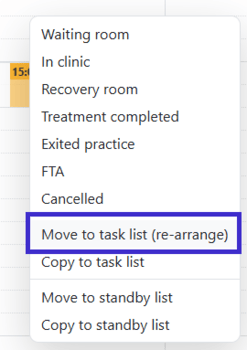
1. Open Appointment Book 2. Right-click the appointment and select “Move to task list”.
- Select the desired date from the calendar.
- In the Appointment Book, right-click and select “New Appointment”
- Select a patient from the Task List pane
- The appointment form will automatically populate with the patient’s details.
- Make any necessary edits, then click “Save.”
When edited, the original appointments details are automatically saved in the Patient Record → Appointment Book → History.
How to cancel an appointment
| Appointment Book | Patient Record |
| 1. Right-click on the appointment. 2. Select “Cancelled” status 3. A pop-up window will appear — choose a cancellation reason from the list, or enter a custom reason in the “Other” field. 4. Click “Cancel Appointment” to confirm and cancel the appointment only. You can also send a cancellation sms, email or add it to the Standby list. | 1. Load the Patient Record and go to the Appointment section 2. Select the appropriate appointment under the “Future Appointments” area 3. Click “Cancel Appointments” 4. A pop-up window will appear — choose a cancellation reason from the list, or enter a custom reason in the “Other” field. 5. Click “Cancel Appointment” to confirm and cancel the appointment only. |
How to manage the patient journey
A patient’s status can be updated by right-clicking on their appointment and selecting the appropriate option. Not all statuses need to be used—most practices focus on the key ones. Each status offers its own useful functionality that can be applied when needed.
- Waiting Room
- In Clinic
- Recovery Room
- Treatment Completed
- Exited Practice
- FTA
- Cancelled
How to view a patient's appointment history
- Load a Patient Record
- Navigate to the Appointments tab
- A list of future and past appointments will appear
Click the 'History' button to see a history of a particular appointment, including changes and rearrangements.
You can alternatively find a list of future appointments by single left-clicking on the appointment in the Appointment book and navigating to the ‘Future appointments’ tab
How to block a patient from making an appointment
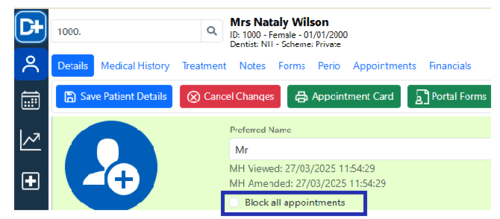
- Open the Patient Record.
- Tick the box labelled “Block all appointments” in the Patient Details
- Save changes
Once enabled, the patient will be unable to book any appointments until this option is unticked.
Standby list
Adding a Standby List item
- Click on the ‘Standby List’ section in the left pane.
- Right-click inside the expanded list and select “New Standby Item”.
- Find a patient and enter the relevant details in the pop-up.
- Click “Save.” The patient will appear in the List.
When a suitable appointment slot becomes available, the user will receive a notification that a patient from the Standby List can be booked in.
Moving an Existing Appointment to the Standby List
- In the Appointment Book, right-click on the appointment.
- Select “Move to Standby List.”
- The appointment will be removed from the Appointment Book and added to the Standby List.
Updating details
- Double-click a required item in the list
- Edit details
- Click ‘Save’
Delete appointment
- Click the "Standby List" panel to enlarge the list.
- Find the appointment and right-click.
- Click 'Delete' and confirm the deletion.
Managing Appointment Book
How to manage clinician display
- In the Appointment Book, click “Clinicians" on the left-side panel
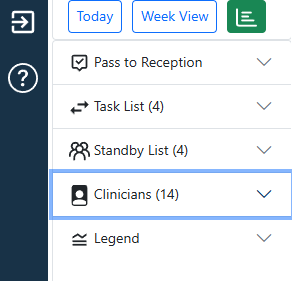
- The list will expand
- Tick or untick the boxes next to the clinician's names to show or hide them in the Appointment Book.
These settings are user-specific and will not affect the view for other users. There is no limit to the number of clinicians displayed in the Appointment Book.
How to print a day list
- Click the “Print Day List” button in the toolbar

- Select the date, clinicians and details to show.
- Hit “Produce List” to open a PDF file with data.
- Print or download the list
How to block slots in the Appointment Book
- In
Admin > Rotafind a clinician in the list.

- Right-click on the required day
- Choose ‘New Block’ in the appearing menu
- Enter the start and end time.
- Select the colour.
- Uncheck 'Allow Appointments' and 'Allow Online Booking'. This indicates that the system will block a slot.
- Click “Save”.
Lab work
Recording lab work
- Click an appointment in the Appointment Book
- Navigate to the Lab Work tab.
- Enter the required details
- Click “Save”
Managing lab work
- In the Appointment Book toolbar, click the Lab Work button.

- A pop-up window will appear displaying all active lab work on the left side.
- Select the relevant lab work, update the details as needed or mark it as completed, then click Save.
Patient Communication
How to send an email…
- Open
Patient Record > Communications - Click “New Email”
- Choose a document template to send in the “Choose template” drop-down
- or enter/copy/paste a message in the editor.
- You can add attachments if needed. Files can be attached directly or replaced with download links for easier access and sharing.
- Select a signature for email.
- Click “Send”
Choose the right communication channel: Emails - Good for detailed messages like pre-appointment instructions or invitations. Sending emails is unlimited and free of charge.
How to send an SMS…
- Open
Patient Record > Communications - Click “New SMS”
- Choose a document template to send in the “Choose template” drop-down
- or enter/copy/paste a message in the editor.
- Click “Send”
Each text message is limited to 160 characters (including letters, numbers, punctuation, and spaces). Messages longer than this will use more than one credit. Each text message is limited to 160 characters (including letters, numbers, punctuation, and spaces). Messages longer than this will use more than one credit.
How to print a Letter
- Open
Patient Record > Communications - Click “New Letter”.
- Create a letter or use a template from the templates menu
- Edit the document if required.
- Click ‘Print& Save’ to print it or save
Once printed, the document is automatically saved in the Patient Record. Saving the edited version will not affect the original template.
How to view Sent Communications
- Open
Patient Record > Communications - All sent communications will be displayed in the list on the left side.
- Click on any document to view the content
- Filter them by type or date

How to send a Reminder
| Auto Reminders | via Appointment Book | via Patient Communications |
| The system automatically sends appointment reminders to patients via SMS or email a set number of days in advance. All reminder settings can be configured in Admin →Practice Setup → Communication Settings | - Single-click the appointment and click ‘Send Reminders’ in the ‘Details’ tab. - Choose a reminder template and click ‘Send’. | - Open the Patient Record and go to the Communications section. - Click either “New SMS” or “New Email”, enter a message or choose a template and click ‘Send’. |
Keeping patient contacts updated
Patient Record > DetailsAppointment book > Appointment-> Waiting Room statusPatient Record > Treatment > Pass to ReceptionPatient Record > Details > Form RequestsPatient Portal > Details
Pass to Reception
The “Pass to Reception” option sends instructions to the reception team, outlining the actions required once the patient’s treatment in surgery is complete.
In the Patient Record → Treatment -> Toolbar click Pass to Reception .
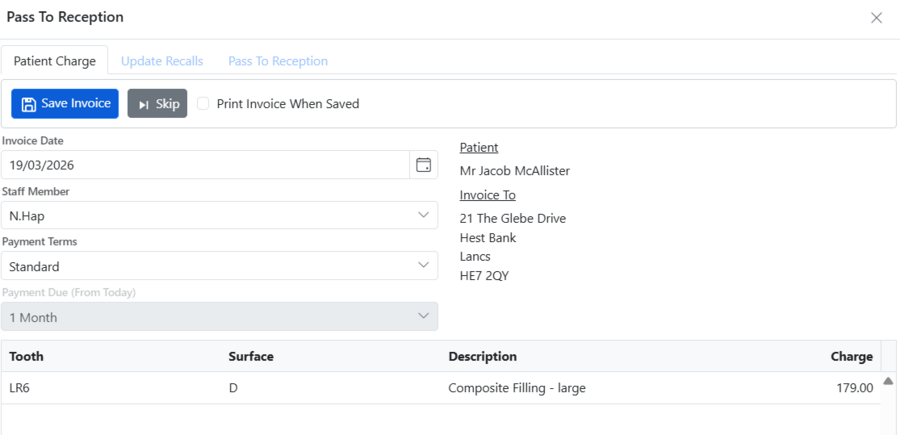
Step 1: Patient Charge
Review the invoice details, then save or print as required.
Step 2: Update Recalls
Check and confirm the recall timeframe. This is important for staying in touch with patients with no future appointments.
Step 3: Pass to Reception
Add details for the next appointment. Send the ‘Pass to Reception’ task or close the dialogue
Step 4: Complete a tasks
- Expand the list and double-click on the patient name
- Check details, take payment
- Book future appointments
- Click the Loupe icon, select the required appointment slot, and save the booking.
- If no suitable slots are available, add the patient to the Waiting List.
- Once all steps are completed, the pop-up window will close, and the Pass to Reception task will disappear from the list.
- A task can also be completed manually by right-click the patient in the Pass to Reception list.
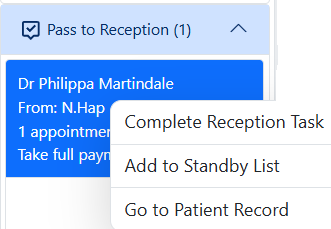
Once a Pass to Reception task is completed, update the patient’s status to “Exited Practice” in the Appointment Book.
Patient Financials
Invoicing
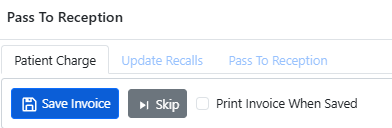
- Open
Patient Record → Treatment - Complete treatments by ticking the Completed checkbox next to each treatment in the treatment plan.
- Click Pass to Reception on the top toolbar
- Check details: date, staff member and payment terms.
- Save invoice
- The invoice will appear in the Patient Financials.
How to take a payment
All payments need to be allocated to the corresponding invoices.

- Open
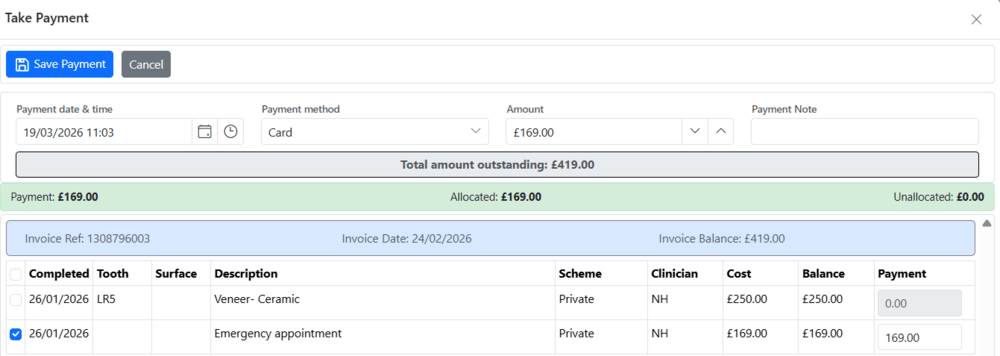
Patient Record → Financials - Click ‘Take Payment’
- Select the date and payment method
- Enter the amount to be paid
- Allocate this payment to outstanding invoices if required
- Click ‘Save payment’
- The payment will appear on the list.
The system allocates payments to specific treatments. Uncheck a treatment to link the payment to the necessary one.
How to take a deposit
A deposit remains available until the user decides to apply it manually.
Each deposit is required to be manually allocated to an invoice.
- Open
Patient Record → Financials - Click ‘Take Deposit ’
- Select the date and payment method.
- Enter the amount to be credited
- Choose who the deposit is credited to.
- Click ‘Save deposit’
- The payment, being coloured yellow, will appear on the list.
How to allocate payments
- Open
Patient Record → Financials - Right-click the required invoice and select Allocate Payment.
- Choose an available payment from the list, then click Save Payment.
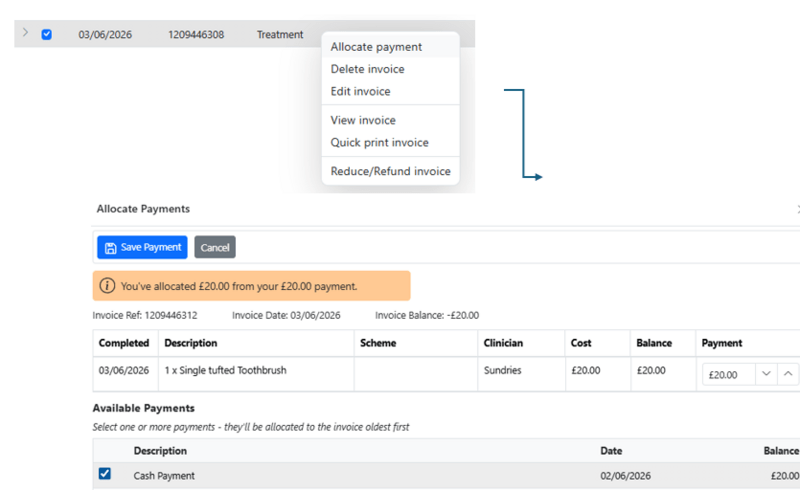
- Expand payment details to see
- which treatment it is allocated to,
- how much has been used
- the remaining balance.

Processing a sundry sale
- Open
Patient Record → Financials - Click ‘Sundry Sale’
- Select an item from the menu
- Change the price if necessary
- Choose quantity
- Assign the sale to a specific clinician or practice
- Click ‘+Add’
- Repeat these steps if needed
- Click ‘Save’ to submit the invoice
How to edit payment details
- Right-click on the payment in Financials and select “Edit Payment”
- The following details can be edited: • Staff – this will automatically be the default clinician of that patient • Payment method – how the payment was made
How to delete payment
- Right-click on the payment in Financials and select Delete Payment
- A pop-up will appear — enter the reason for deletion and click Delete
- The payment will be marked as deleted.
Deleted payments remain visible in Financials. They appear in grey and can be viewed by using Filter → Show Deleted Items.
How to edit invoice
- Right-click on the invoice in Financials and select “Edit Invoice”
- The following details can be edited: • Staff – this will automatically be the default clinician of that patient • Payment terms – standard or extended
How to delete invoice
- Right-click on the invoice in Financials and select “Delete Invoice”
- Confirm deletion
- Treatment items will become available for modification in the Treatment section.
Financial amendments
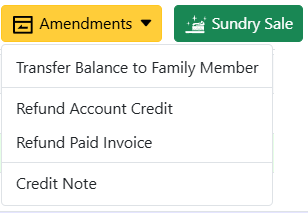
Depending on the situation, the system allows for refunding account credit and paid invoices, transferring balances within a family member, and issuing credit notes.
Transfer Balance to a Family Member
A patient’s positive balance can be transferred to a linked family member.
- Open
Patient Record → Financialsand click Amendments. - Click ‘Transfer Balance to Family Member’
- Select a family member.
- Choose an available payment.
- Enter an amount
- Click ‘Transfer Balance’.
- A corresponding record will be shown in both patient records.
Issue a Credit Note
A credit note can be issued to reverse all or part of an invoice, generating a corresponding credit on the patient’s account. It might be used for future treatments or issued immediately.
- Open
Patient Record → Financialsand click Amendments. - Click ‘Credit note’
- Select a reason and date, and enter the amount.
- Decide whether the refund should be issued immediately, in line with the patient’s request.
- Click ‘Save Credit Note’.
- Records marked in red will appear in the list and can be used for future invoices.
Refund Account Credit
If a patient has a positive balance, a refund can be processed directly from the available account credit.
- Open
Patient Record → Financialsand click Amendments. - Click ‘Refund Account Credit’
- Select a reason and date, enter the amount, and choose the refund method.
- Select a payment to be refunded
- Click ‘Save Refund’.
- The record, coloured in purple, will then show on the list.
Account credit cannot be refunded for patients who are in debt.
Refund paid invoice
A paid invoice can be refunded by applying a discount that reduces the original charge and updates the patient’s account accordingly.
- Open
Patient Record → Financialsand click Amendments. - Then click ‘Refund Paid Invoice’
- Select a reason and date.
- Choose the invoice to be adjusted
- Decide whether the refund should be issued immediately, in line with the patient’s request.
- Enter the amount
- Click ‘Apply Credit Note’.
- The record, coloured in red, will thereafter appear on the list.
How to print financial documents
Open Patient Record → Financials
- Invoice – Right-click an invoice and select View Invoice to print or email it.
- Receipt – Right-click the payment and select View Receipt to print or email it.
- Statement – Click Print Statement on the toolbar to print, download or email it.
How to email financial documents
Open Patient Record → Financials
- Select the required document by ticking boxes nex to dates.
- Click Email’ in the toolbar.
- Choose a template, select a signature, and send it to the patient.
DentalPlus Messenger
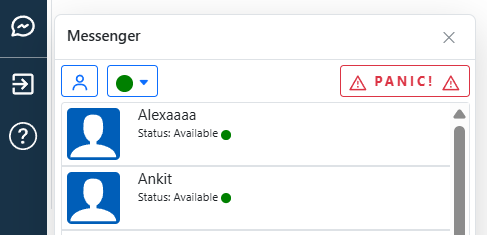
- Access it from the main menu in the left panel.
- Click the name of the person you want to message and send a message.
- Use the search function to find a person if needed.