Patient Portal
The Patient Portal is a secure, web-based platform designed to help patients interact with your practice online. It transforms traditional in-practice processes into efficient digital experiences, improving convenience for patients while helping practices operate more effectively.
How to Access the Portal
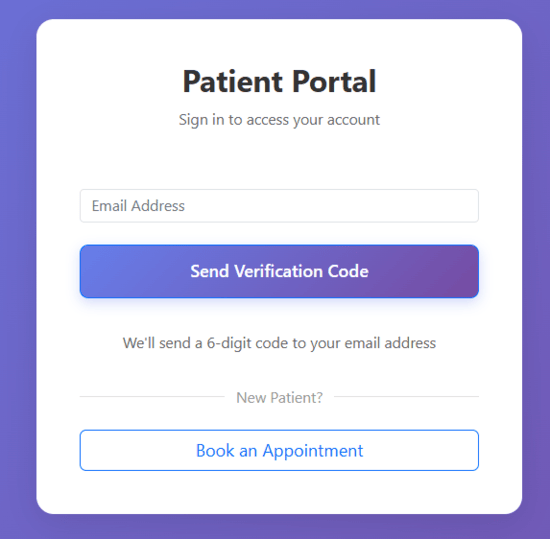
Existing Patients
- Open the portal link in a web browser.
- Enter the registered email address.
- The system verifies whether a patient with this email exists.
- A verification code is sent to the email address.
- Enter the verification code to access the dashboard.
Once verified, the patient is logged into their account.
New Patients
- Book an appointment online.
- Enter contact details.
- Select appointment preferences.
After the first appointment is created, the system automatically generates a patient record. The reception team can then access and manage the patient’s details within DentalPlus.
Dashboard Overview
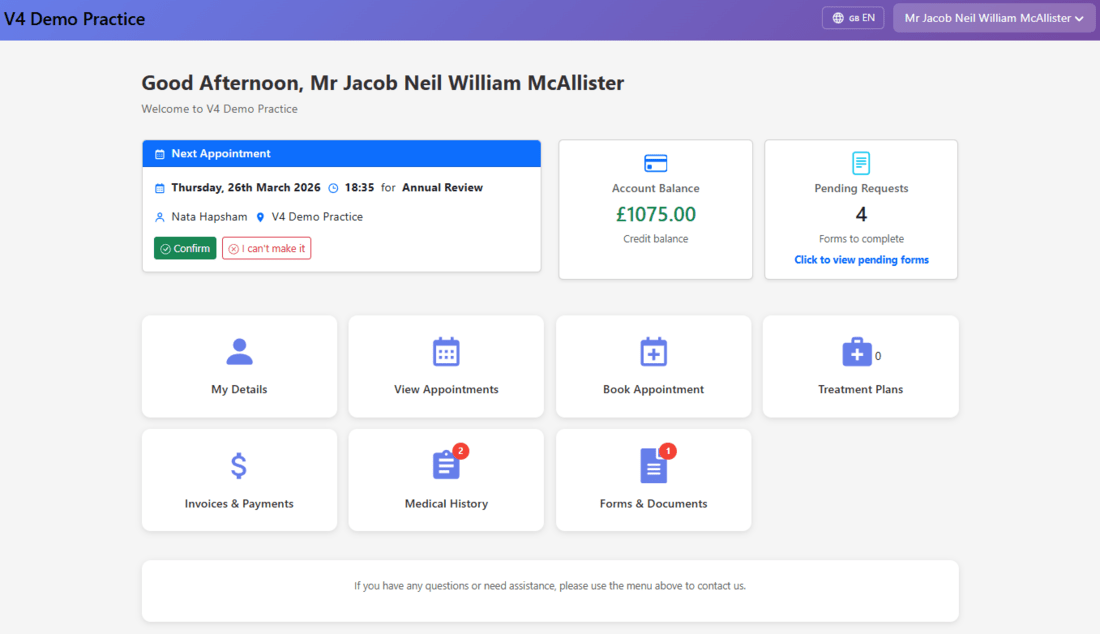
After logging in, the patient is directed to the Dashboard.
The dashboard:
- Displays upcoming appointments
- Shows important notifications
- Highlights pending requests
- Provides access to all portal functions
- A red notification icon indicates that forms or actions require attention.
The portal supports multiple languages. Patients can select their preferred language from the language menu.
Portal Sections
My details
Patients can review and update their personal information at any time.
After making changes, click Save to confirm updates.
View Appointments
Displays a list of upcoming and past appointments, including statuses and details.
Patients can request cancellations or book new appointments.
Book an appointment
To book a new appointment:
- Select the required appointment type.
- Choose an available date and time.
- Confirm the booking.
- If no deposit is required, the appointment is confirmed immediately and appears in the practice diary and Patient Record as an online booking with provisional status.
- If a deposit is required and paid, the payment is automatically recorded in the Financials section.
Treatment Plans
Displays treatment plans awaiting patient signature.
Patients can:
- Review treatment details
- View estimated costs
- Sign the treatment plan digitally
Once signed, the treatment plan is updated in the Patient Record and remains available for viewing.
Invoices and Payments
Shows a chronological history of:
- Invoices
- Payments
Patients can make secure online payments and view or download documents. All payments are processed via Stripe and recorded automatically in the Financials section.
Medical history
Displays the most recently completed medical history form.Patients can update their medical history at any time by logging into the portal.
Treatment history
Displays all completed treatments for the patient.
Forms & Documents
Displays forms that are awaiting completion, as well as those that have already been completed.