Medical History
Open a patient record and navigate to Medical History.
Patients with medical alerts...
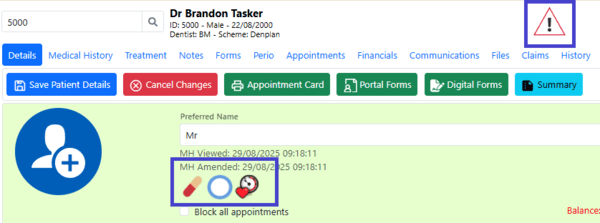
Important medical alerts are displayed as icons on the patient record details page. A warning symbol will also appear in the toolbar whenever you are viewing a patient with a medical alert.
Viewing Medical History …
Current medical history form
- Open
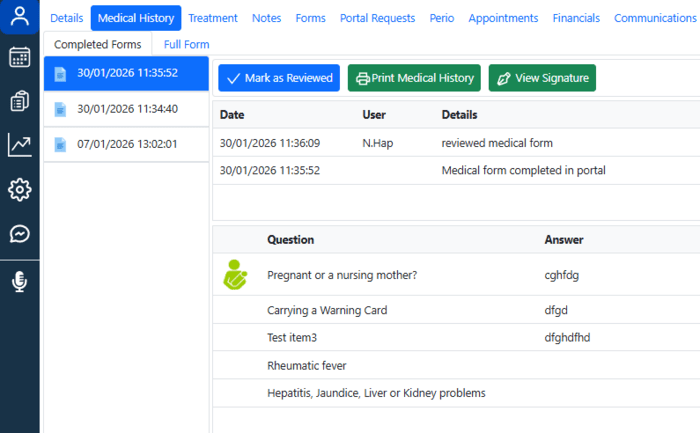
Patient Record > Medical History> Completed Forms - The latest Medical History form will appear on the screen.
- All questions answered “Yes” will be displayed in the Completed Forms tab.
- View a patient's signature if necessary, or print the completed Medical history form
- Click the ‘Full Form’ tab to display all medical questions
Previous medical history forms
- Open
Patient Record > Medical History > Completed Forms - Select the required form from the left-hand pane.
- The system will display all questions that are answered "Yes" as well as the patient's signature, if it has already been signed.
- Click “Print Medical History” to print it.
Alternatevly, completed medical history form can be found under Patient Record ->Forms-> Medical History
Reviewing the Current Medical History
- Open
Patient Record > Medical History - The Medical Answers page will automatically load with all current answers.
- Once you have reviewed the MH, click the Mark as reviewed button, and this will be recorded in the system.
Printing a Blank Medical History Form
- Open
Patient Record > Medical History - Navigate to the Full Form tab
- Click Print with no answers