Notes
The Notes section allows users to create and manage both Patient Notes and Clinical Notes. Users can:
- Create new notes
- Edit or delete notes, subject to their permissions and only if they created the note.
- View the note history
- Print all or selected notes
- Filter notes by date or category
How to add a Clinical Note…
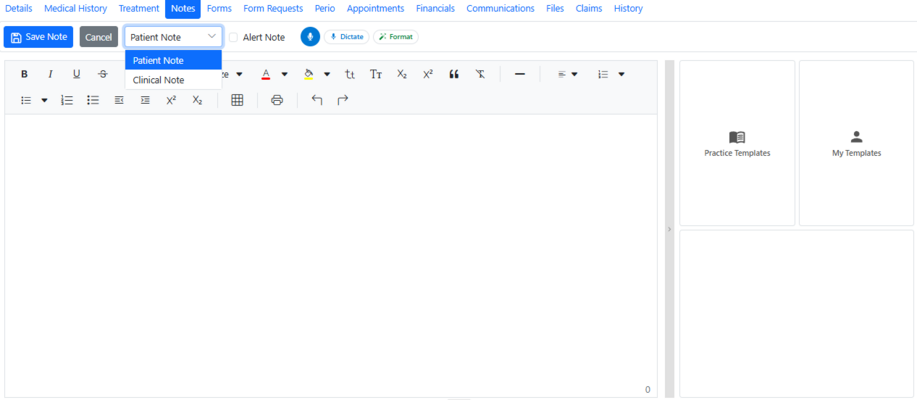
- Open the Patient Record and navigate to the Notes section.
- Click New Note
- Set the note type to Clinical Note
- Enter a Freehand Note by typing in the editor. Use the toolbar options for formatting,
- Alternatively, use a Note Template from the right-hand panel
- Choose the type of note templates: Practice or User Templates.
- Select a template from the list.
- Ammend a note with any required information.
- Then click Save.
By default, the type of new notes depends on user role.
Slash Note templates
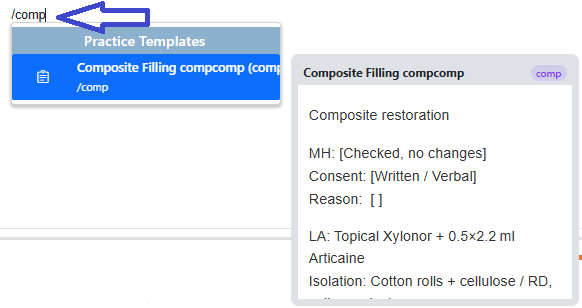
The system allows users to instantly insert predefined note templates using the Slash Notes functionality.
How to use Slash Notes..
- Save a note template with a dedicated slash code.
- When creating a note in the Patient Record, press / on your keyboard and type the code.
- Press Enter to insert the template into the note.
- Complete or amend the note if required.
- Click Save.
How to add a Patient Note…
- Open the Patient Record and navigate to the Notes section.
- Click New Note
- Set the note type to Patient Note
- Enter, dictate or use a template to add a note
- click Save.
How to add an Alert Note…
- Open the Patient Record and navigate to the Notes section.
- Click New Note
- Set the note type to Patient Note
- Enter, dictate or use a template to add a note
- Tick Alert Note in the toolbar
- click Save.

How to edit a Note…
- Open the Patient Record and navigate to the Notes section.
- Click the ‘Edit’ icon in the note's toolbar
- Make changes and click Save.

Editing, deleting, and viewing a note’s edit history are permitted only for the user who originally created the note. Click Edit History to view previous versions.
How to delete a Note…
- Open the Patient Record and navigate to the Notes section.
- Find the necessary note
- Click the ‘Delete’ icon in the note's toolbar and confirm the action.
Deleted notes can be displayed by selecting the Show Deleted Notes in the Note Filters.
Deleted notes can be restored if required.
The delete option is permitted only for the user who originally created the note.
How to print Notes…

- Open the Patient Record and navigate to the Notes section.
- To print all notes, click the arrow next to the 'Print Notes' button and choose Select All
- To print an individual note/notes, click the tick-box next to each note
- To print only clinical notes, apply the filter before selecting the notes
- Press 'Print Notes': a PDF file will appear ready for downloading, printing, or emailing.
Note Filters
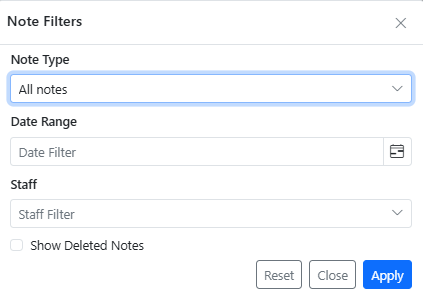
Filter notes by type, date, or user name using the Note Filters functionality.
Once a filter is applied, users can view or print the corresponding set of notes.