Bulk Communications
A built-in tool that allows you to send bulk emails and SMS messages to patients directly from DentalPlus.
Sending Bulk Communications
DentalPlus includes a built-in tool for sending bulk emails and SMS messages to patients directly from the system. It can be used to contact selected groups of patients about recalls, treatments, appointments, practice updates and other relevant information, without the need for a separate third-party service for these communications.
Emails can be sent directly from DentalPlus at no additional charge.
SMS messages require text credits, which can be purchased by an Admin user under Admin → Practice Setup → Buy Text Credits.
Before start, always check patients’ communication preferences before sending messages and make sure that the communication is appropriate for the selected patient group. When sending patient information, the practice is responsible for following GDPR and data protection requirements.
Step 1: Create your message
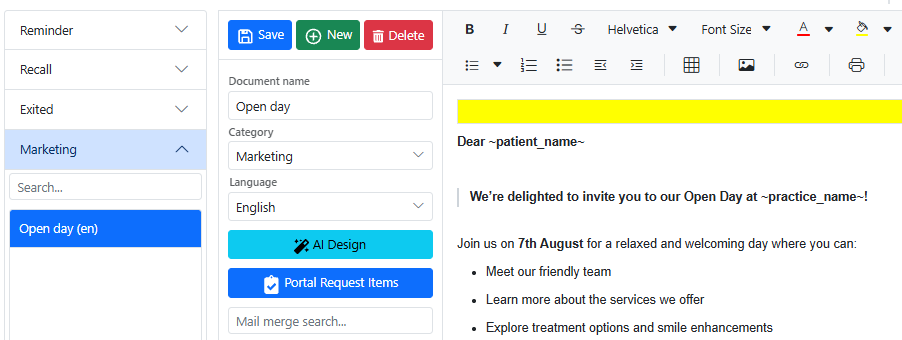
- Create an Email or SMS template that you would like to send to patients.
- You can create templates under:
Admin → Document Templates - Add your message and save the template.
Step 2: Choose the patients
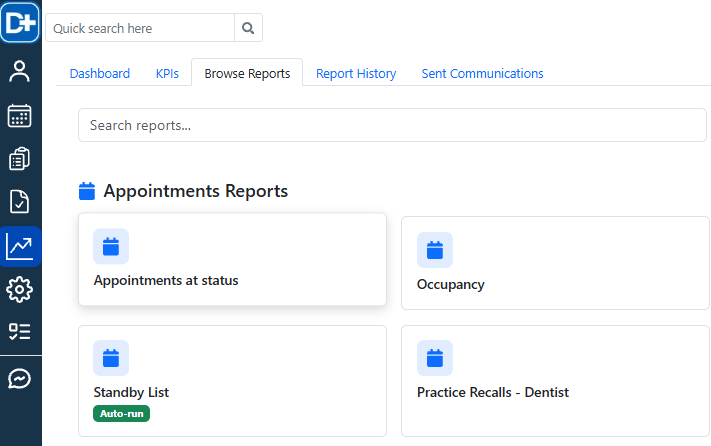
- Use the relevant Patients report to create a list of patients you would like to contact.
- You can use filters to select a specific group, for example:
Patients with no future appointments Patients due for a recall Patients who have not visited recently Patients based on their clinician or scheme
- Generate the report to create your patient list.
Step 3: Send the communication
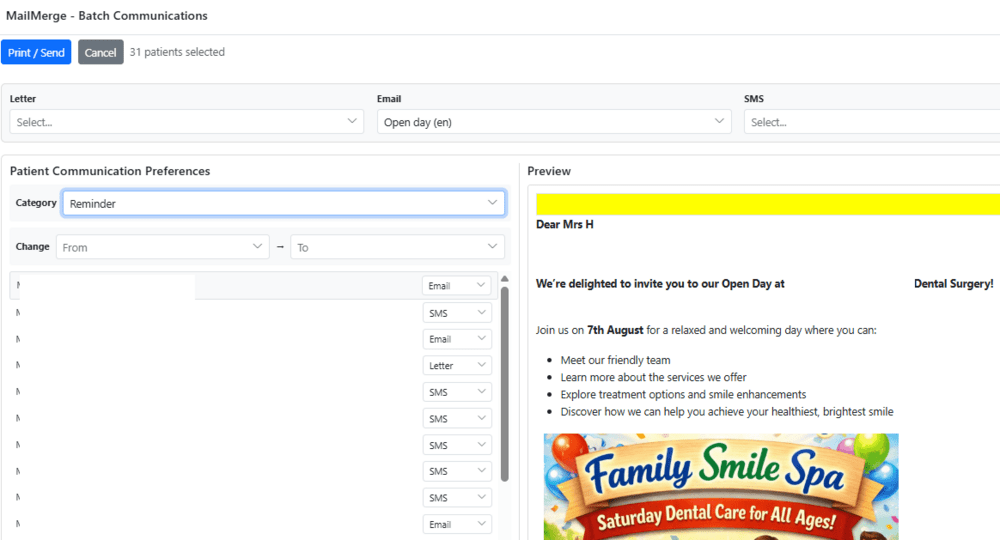
- Click Create Document on the report results screen.
- Select the Email or SMS template you created.
- The system will use the patients’ contact preferences where applicable. If required, you can use Set all… to… to select a specific communication method. Make sure you have permission to contact the selected patients using that method.
- You can click on a patient's name to preview the message before sending it.
- Once everything has been checked, click Print/Send.
The system will record the bulk communication in Sent Communications, where you can review when it was sent, which template was used, who created it and which communication method was used.