Configuration
Users with admin permissions can :
- Setup and configure treatments
- Update treatment prices
- Design and modify note templates and treatment doccument templates
Clinical Note Templates…
Two types of preset note templates are available in the system.
| Type | Description | Location |
|---|---|---|
| Practice Templates | They are shared templates accessible to all users within the practice | Admin → Practice Setup → Practice Clinical Notes |
| User Templates | Individual users create them and use | Admin → User Setup → My Clinical Note Templates |
All templates are also divided into sections for easy navigation and use.
Clinical Note Categories

Adding a new Category:
Go to Admin → Practice Setup → Practice Clinical Notes for Practice templates or Admin → User Setup → My Clinical Note Templates for User templates
- Click ‘New Category’
- Enter a name
- Click ‘Save’
Editing a Category:
- Select a category
- Click ‘Edit Category’
- Change the name
- Save changes
Deleting a Category:
- Select a category
- Click ‘Edit Category’
- Press ‘Delete’
tip
Before deleting a category, make sure all note templates associated with it are removed.
Clinical Note Templates
Adding a new template:
Go to Admin → Practice Setup → Practice Clinical Notes for Practice templates or Admin → User Setup → My Clinical Note Templates for User templates
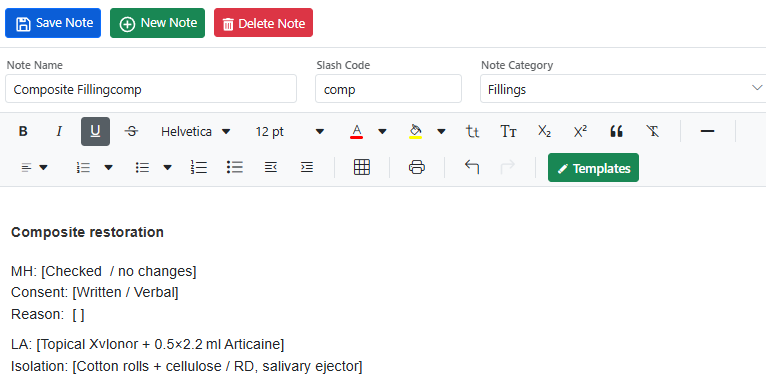
- Click ‘+New Note’
- Enter the note name and select the category.
- Add a Slash Code if requiered
- Create a note template by typing freehand, pasting text, or using an existing preset template.
- Save a template
Editing a template:
- Click the arrow next to the category to expand the list.
- Select a template you want to edit.
- Make your changes
- Click Save.
Deleting a template:
- Click the arrow next to the category to expand the list.
- Select a template you want to delete.
- Click ‘Delete Note’.
info
Deleting a template will not affect previously saved notes.